---
title: "Build a real-time dashboard over BigQuery"
excerpt: "BigQuery real-time dashboard sounds impossible. It's not. Here's how to add sub-second updates to your warehouse data."
authors: "Cameron Archer"
categories: "I Built This!"
createdOn: "2023-10-19 00:00:00"
publishedOn: "2023-10-20 00:00:00"
updatedOn: "2025-04-24 00:00:00"
status: "published"
---

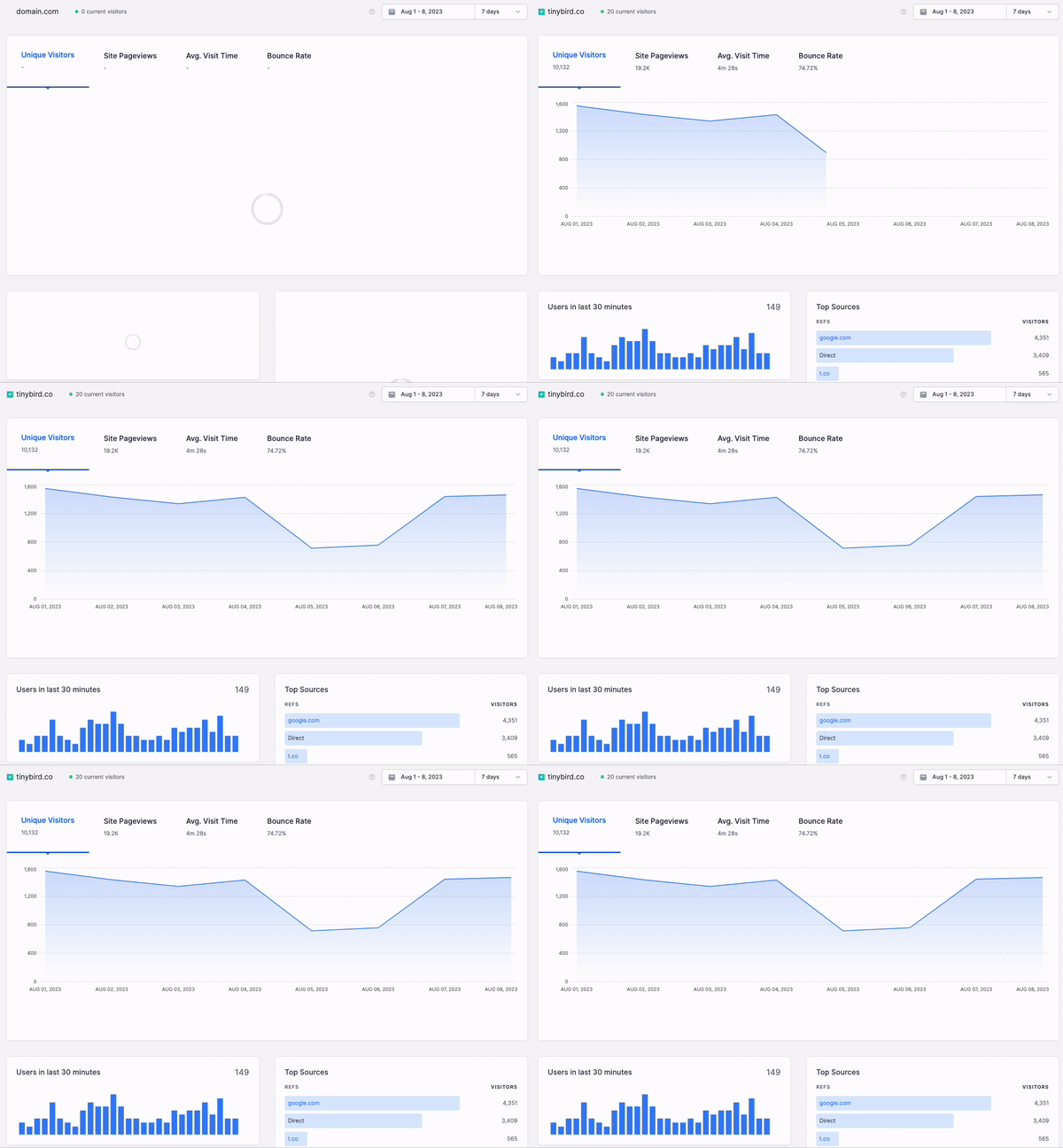
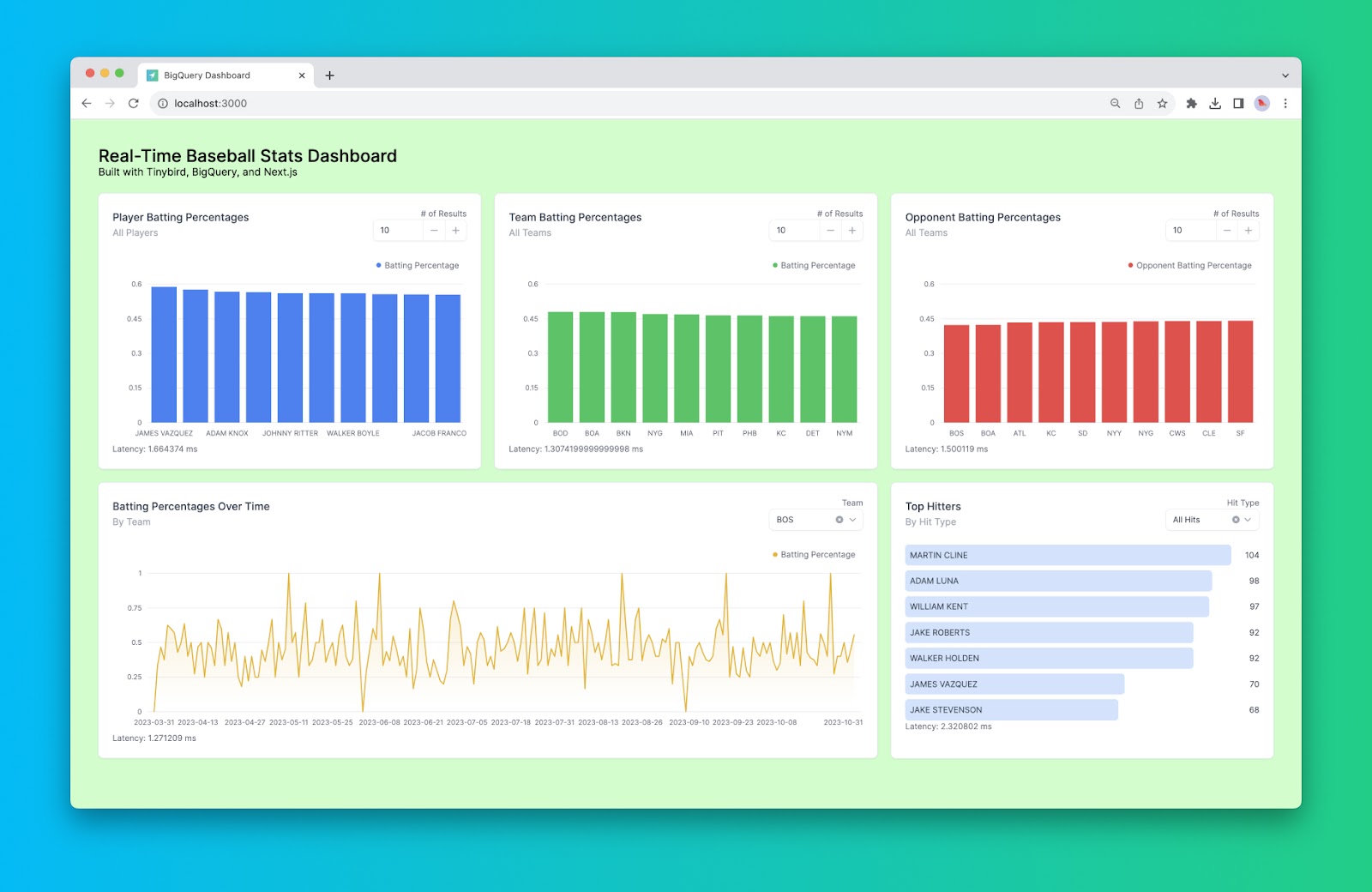
<p>How do you build a real-time dashboard on top of BigQuery? That’s the question that this blog post answers via a step-by-step tutorial for building a real-time React dashboard app over BigQuery using Tinybird, Next.js, and Tremor components. This is what the final product looks like:</p><figure class="kg-card kg-image-card kg-card-hascaption"><img src="https://lh7-us.googleusercontent.com/nH9PXgOt84EwNf3vJcg1r7Ky6AkzYzvKal2LxR5_B_RdZ7y6Y9AuAYiwLX8ofKb-nLadsgY79h3BNi612u5eZNEW5NhPyjTfcgFEnBwdOWY9iy-Lid1XoKrDGxzJtsQx-KQGr9nM0jwJZmzDOVXrZCA" class="kg-image" alt="A real-time dashboard built on top of BigQuery tables." loading="lazy" width="1600" height="1040"><figcaption><span style="white-space: pre-wrap;">A real-time dashboard built on top of BigQuery tables.</span></figcaption></figure><p>If you’d like to skip ahead to the tutorial, click <a href="#step-by-step-build-a-real-time-dashboard-over-bigquery-with-tinybird-and-nextjs" rel="noreferrer">here</a>.</p><p>But first, let’s answer two questions:</p><ol><li>Why would you want to build a real-time dashboard over BigQuery?</li><li>Why are traditional approaches to dashboarding with BigQuery not suitable for this use case?</li></ol>
<!--kg-card-begin: html-->
<div class="tip-box"><div class="tip-box-container"><div class="tip-box-title">Free Training: Build Real-Time Dashboards</div><div class="tip-box-content">Learn how to build a real-time dashboard from end-to-end in our online free training on March 13th. <a href="https://www.tinybird.co/live-coding-sessions/kafka-real-time-dashboard?utm_campaign=q1-2024-blog-lcs-referral">Register here</a>.</div></div></div>
<!--kg-card-end: html-->
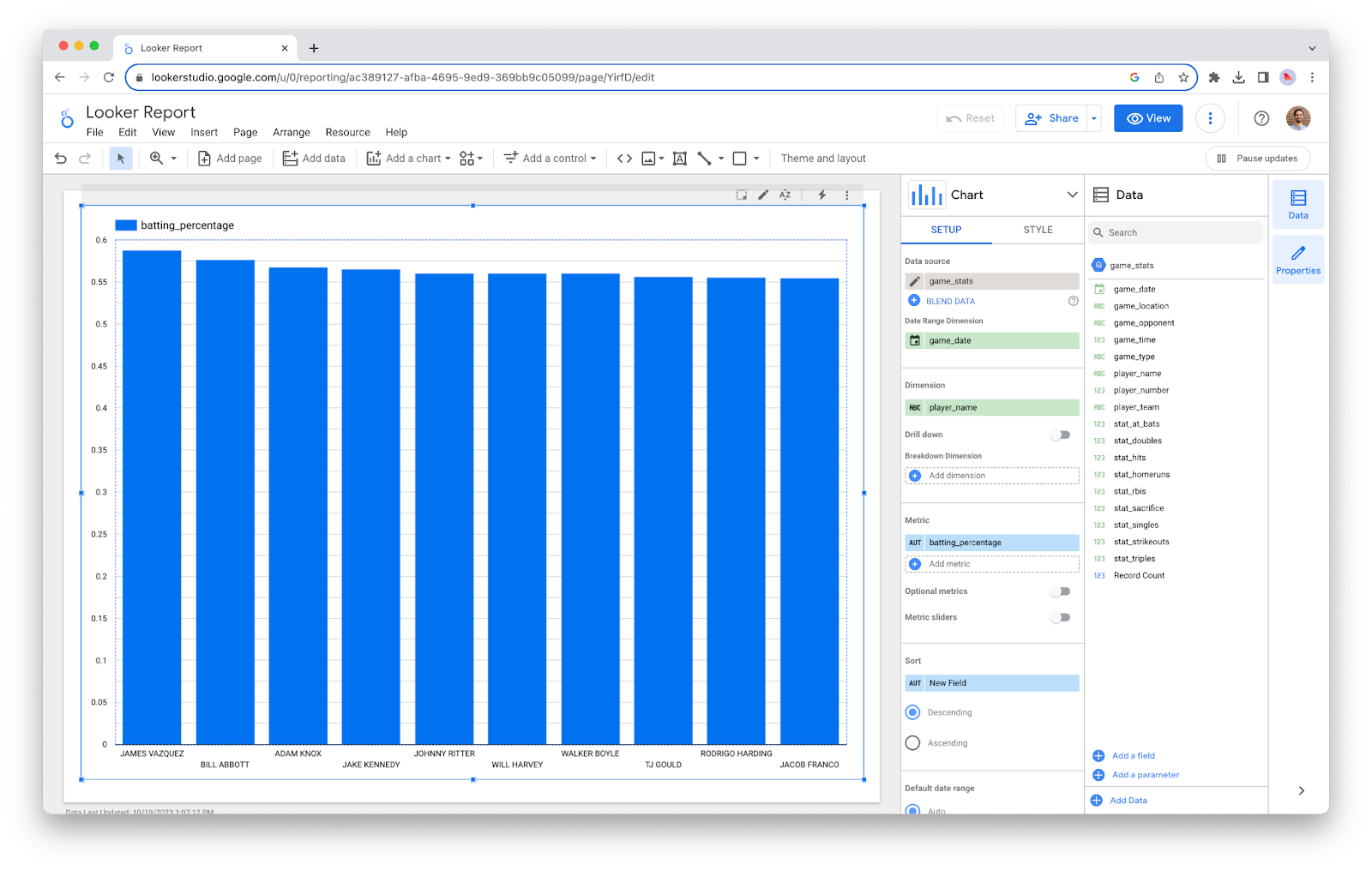
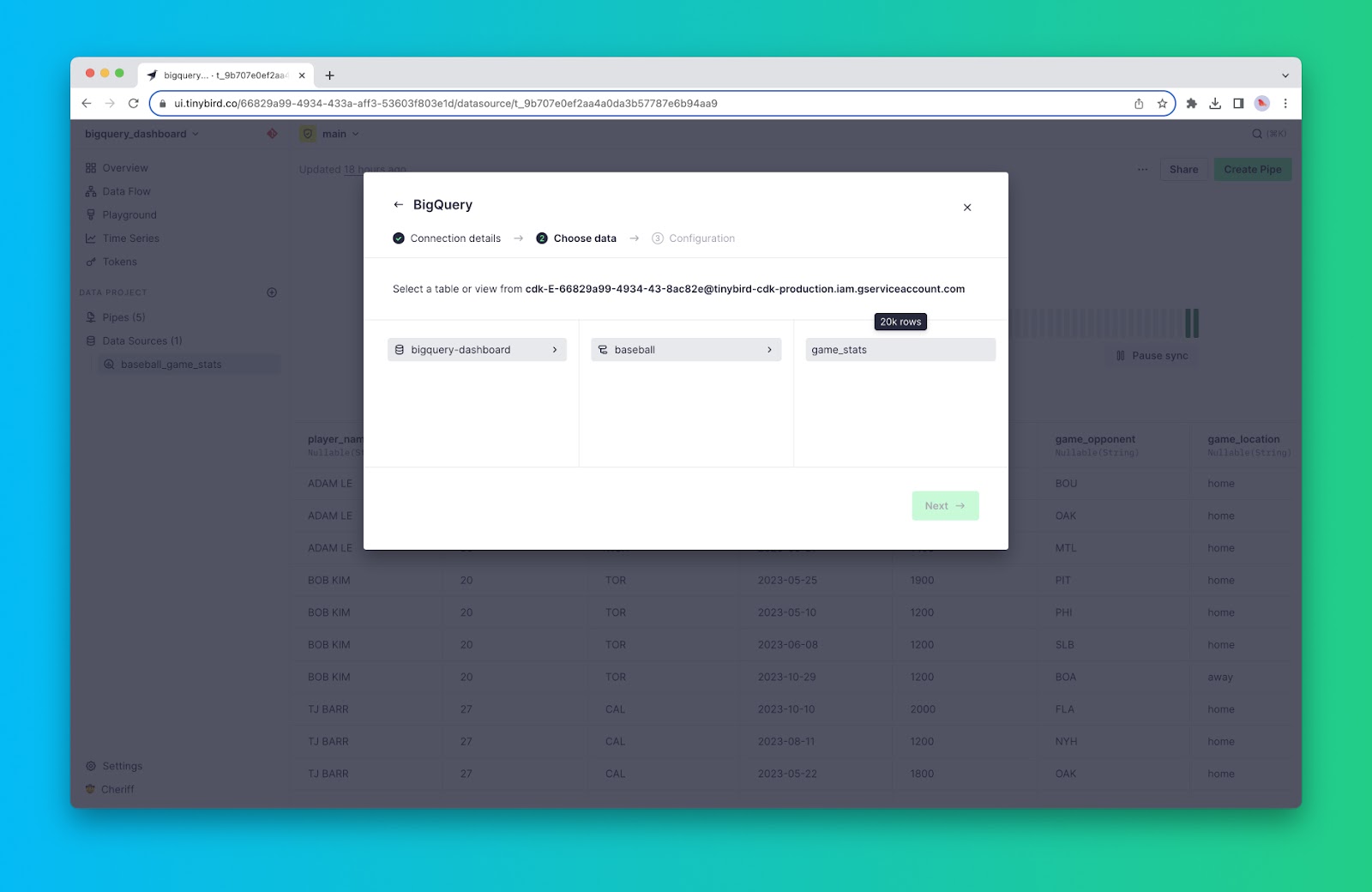
<h2 id="why-create-real-time-dashboards-over-bigquery">Why create real-time dashboards over BigQuery?</h2><p>Google BigQuery is a serverless data warehouse, offering powerful online analytical processing (OLAP) computations over large data sets with a familiar SQL interface. Since its launch in 2010, it’s been widely adopted by Google Cloud users to handle long-running analytics queries to support strategic decision-making through business intelligence (BI) visualizations.</p><p>Sometimes, however, you want to extend the functionality of your BigQuery data beyond business intelligence. One such extension is <a href="https://www.tinybird.co/blog-posts/user-facing-analytics" rel="noreferrer">user-facing analytics</a>: real-time data visualizations that can be integrated into user-facing applications. A growing trend emphasizes <a href="https://www.tinybird.co/blog-posts/real-time-dashboards-are-they-worth-it">the importance of including real-time data visualizations</a> in user-facing applications, so if your data is in BigQuery, you’ve come to the right place.</p><h3 id="what-is-a-real-time-dashboard">What is a real-time dashboard?</h3><p>A <a href="https://www.tinybird.co/blog-posts/real-time-data-visualization">real-time dashboard</a> has three important qualities:</p><ol><li>It displays metrics calculated from <a href="https://www.tinybird.co/blog-posts/definition-of-real-time-data">real-time data</a> that is often only seconds old (or less).</li><li>It populates and refreshes visualizations in milliseconds.</li><li>It supports concurrent requests from many users (thousands or millions).</li></ol><figure class="kg-card kg-image-card kg-card-hascaption"><img src="https://lh7-us.googleusercontent.com/hxpO7ptWuF4TcEpXb7YxEr5gOzKvJzxKDx2f6BYc6xyepr1RNYpS64Y27JsLSePICaLQVHmk190myHfFGtwGoRRIQUhtigF8N_tvVOBbWjJCFAibM4V6x7pFWdXu9ihePiv7i-W7McmgZUxdPtU9d_I" class="kg-image" alt="A gif of a real-time dashboard" loading="lazy" width="600" height="432"><figcaption><span style="white-space: pre-wrap;">A real-time dashboard loads quickly, displays the freshest data, and supports many concurrent requests.</span></figcaption></figure><p>Real-time dashboards are increasing in popularity as product teams seek to embed analytics into their applications. To support new data-driven features, these embedded analytics must be high-speed for many concurrent users.</p><h3 id="traditional-ways-to-build-bigquery-dashboards">Traditional ways to build BigQuery dashboards</h3><p>For Google Cloud Platform (GCP) users, the de facto method for building dashboards over BigQuery is with <a href="https://cloud.google.com/looker">Looker</a> and <a href="https://lookerstudio.google.com/u/0/">Looker Studio</a> (formerly known as “Google Data Studio”).</p><p>Looker is a data modeling and business intelligence tool that can connect with data sources like BigQuery. With Looker, you can filter, aggregate, and enrich data sources to build new data models and tables. You can embed dashboards built with Looker into user-facing applications using iframes.</p><p>Looker Studio is a simple report-building tool that can connect to many different Google data sources, including BigQuery and Looker. With Looker Studio, you can import data sources and build reports to filter and aggregate those data sources in a visual manner. As with Looker, you can embed those reports into a web application or product using a simple iframe.</p><figure class="kg-card kg-image-card kg-card-hascaption"><img src="https://lh7-us.googleusercontent.com/8tyd8a5d5aAwj2xiYdK2inwmhJdaTl05azutzk2MoKHdG7XFsXKFtyr8mrgRg6zqUTsAi0I1P4jo7ybc0dMhycmABh3uT3f5YEsQZz-h0_XKnnW3nVof3CvzwBV8tKi_c0AMJ6wMO740bQIwjhjwMOs" class="kg-image" alt="A screenshot of a Looker Studio dashboard built over a BigQuery table" loading="lazy" width="1600" height="1015"><figcaption><span style="white-space: pre-wrap;">You can build Looker Studio dashboards over BigQuery data, but they'll struggle to support user-facing applications that require high concurrency, fresh data, and low-latency API responses.</span></figcaption></figure><h3 id="why-are-looker-dashboards-so-slow">Why are Looker dashboards so slow?</h3><p>Looker and Looker Studio are good business intelligence tools. If you use the two together, you can build comprehensive data models and consistent business metrics, and then construct dashboards to visualize them.</p><p>Unfortunately, these dashboards are often slow. The main culprits, <a href="https://cloud.google.com/looker/docs/best-practices/considerations-when-building-performant-dashboards">according to Google</a>:</p><ol><li><strong>Too much data</strong>. Google mentions that datasets with “thousands” of data points can start to consume more memory.</li><li><strong>Too many dashboard elements</strong>. More frontend components can slow down your Looker experience.</li><li><strong>Autorefreshing too quickly</strong>. Google recommends avoiding autofreshing more frequently than 15 minutes.</li><li><strong>No caching</strong>. Google recommends leveraging caching (using <a href="https://cloud.google.com/looker/docs/reference/param-model-datagroup">datagroups</a> or <a href="https://cloud.google.com/bigquery/docs/bi-engine-intro">Google BI Engine</a>) to speed up your query performance.</li><li><strong>Post-query computations are expensive</strong>. Want to create interactive dashboards that construct metrics on the fly? Beware of increased memory consumption.</li><li><strong>Too many columns and rows</strong>. If your queries return more data, your dashboards will slow down.</li></ol><h2 id="why-you-can%E2%80%99t-build-real-time-dashboards-with-bigquery">Why you can’t build real-time dashboards with BigQuery</h2><p>Even if you follow all of Google’s recommendations to <a href="https://cloud.google.com/looker/docs/best-practices/how-to-optimize-looker-server-performance">optimize Looker performance</a>, you still won’t be able to build real-time dashboards over BigQuery.</p><p>Here’s why:</p><ol><li><strong>Google BigQuery can’t handle user-facing concurrency</strong>. It’s designed for long-running analytical processes by a small number of concurrent users. Google BigQuery implements <a href="https://cloud.google.com/bigquery/docs/query-queues">query queues</a> that limit the number of queries that can be processed concurrently. By default, the query queue <a href="https://cloud.google.com/bigquery/quotas#query_jobs">can only hold 1,000 interactive queries at once</a>. If your dashboards make multiple queries, you’ll be limited to hundreds of concurrent users at best.</li><li><strong>Google BigQuery has a lot of query overhead</strong>. It’s rare to return any query in BigQuery in less than a second. That’s because BigQuery fundamentally isn’t a database, and it does many other things to handle metadata, initiate query operations, and return query responses. This often means that even simple queries over small datasets can take a few seconds.</li><li><strong>Google BigQuery isn’t built for streaming data. </strong>As a <a href="https://www.tinybird.co/blog-posts/why-data-warehouses">cloud data warehouse</a>, BigQuery was designed for batch ETL/ELT processes that extract source data on infrequent schedules. By default, it won’t contain very fresh data.</li></ol><h3 id="ways-to-speed-up-bigquery-for-real-time-dashboards">Ways to speed up BigQuery for real-time dashboards</h3><p>If you want to build fast dashboards over BigQuery for user-facing applications, you have some options:</p><ol><li><strong>Use Google Cloud and BigQuery features to improve performance</strong>. Things like the <a href="https://cloud.google.com/bigquery/docs/write-api">BigQuery Storage Write API</a> and BigQuery BI Engine can speed up BigQuery data through streaming ingestion and query caching, respectively. This can work if you don’t have large concurrency requirements and don’t need the fastest responses possible.</li><li><strong>Use an in-memory store to cache results</strong>. If all you want is to improve query response times from BigQuery, you can use an in-memory key-value store like <a href="https://redis.io/">Redis</a>. Redis can cache and occasionally update Google BigQuery results, and speed up frontend performance by avoiding the need for requests to initiate a read from disk.</li><li><strong>Use a real-time data platform</strong>. If you need the trifecta of freshness, concurrency, and latency for your real-time dashboards, then use a <a href="https://www.tinybird.co/blog-posts/real-time-data-platforms">real-time data platform</a> like <a href="https://www.tinybird.co">Tinybird</a>. Tinybird can replicate your BigQuery tables into a <a href="https://www.tinybird.co/blog-posts/when-to-use-columnar-database">full OLAP database</a> optimized for reduced query latency on complex analytical queries. Unlike a cache, it can provide complete responses to interactive queries in milliseconds. It <a href="https://www.tinybird.co/docs/concepts/apis.html">exposes queries as APIs</a> that can be integrated directly into JavaScript, Python, or other such application code. And it supports streaming ingestion from <a href="https://www.tinybird.co/docs">other data sources</a> to enhance freshness.</li></ol><h2 id="step-by-step-build-a-real-time-dashboard-over-bigquery-with-tinybird-and-nextjs">Step-by-Step: Build a real-time dashboard over BigQuery with Tinybird and Next.js</h2><p>Now for the fun part, let’s build a real-time dashboard over BigQuery. To do so, we’re going to use Tinybird and its native <a href="https://www.tinybird.co/docs/ingest/bigquery.html">BigQuery Connector</a>. Tinybird will replicate BigQuery tables into its <a href="https://www.tinybird.co/blog-posts/real-time-databases-what-developers-need-to-know">real-time database</a>, enable us to build metrics for our dashboards with SQL, and expose those metrics as APIs that we can integrate into our frontend code.</p><p>To build an interactive dashboard, we’ll be creating a <a href="https://nextjs.org/">Next.js</a> app that utilizes Tremor dashboard components. This builds off of <a href="https://www.tinybird.co/blog-posts/real-time-dashboard-step-by-step">another real-time dashboard tutorial</a> we published for streaming data sources.</p><p>You can follow along below, or deploy the entire project by cloning <a href="https://github.com/tinybirdco/bigquery-dashboard">the GitHub repo</a>, setting up your individual resources in BigQuery and Tinybird, and deploying it.&nbsp;</p><p>Let’s dig in.</p><h3 id="step-1-set-up-a-free-tinybird-workspace">Step 1: Set up a free Tinybird Workspace</h3><p>Tinybird will serve as the <a href="https://www.tinybird.co/blog-posts/real-time-analytics-a-definitive-guide">real-time analytics</a> engine that powers our real-time dashboard. To use Tinybird, sign up for a free account <a href="https://www.tinybird.co/signup">here</a> and create a Workspace. I’ve called my Workspace <code>bigquery_dashboard</code>.</p><h3 id="step-2-connect-your-bigquery-dataset-to-tinybird">Step 2: Connect your BigQuery dataset to Tinybird</h3><p>To get your BigQuery data into Tinybird, you’ll use the <a href="https://www.tinybird.co/docs/ingest/bigquery.html">Tinybird BigQuery Connector</a>. Follow the steps in the documentation to authorize Tinybird to view your BigQuery tables, select the table you want to sync and set a sync schedule.</p><p>In this tutorial, I’ve created a small sample dataset that contains 20,000 rows of fake baseball stats. If you want to follow along, you can <a href="https://github.com/tinybirdco/bigquery-dashboard/blob/main/baseball_stats.csv">download it from the repo</a> and upload it to your BigQuery project.</p><figure class="kg-card kg-image-card kg-card-hascaption"><img src="https://lh7-us.googleusercontent.com/kl6EQ1A6m-lEHmIyAshwPhW7iReb2v-1ZaGE9kJe7ipqrw_z6oMJrW9uCZMIVASFLdYV5urOn9RGu2loDM7HxVYeSlCGvXIDCEECz7ipO0qm30YPQRFxa3Rl61XwjIMGTPhDD8Yucp9YYIClno-sICU" class="kg-image" alt="A screenshot of the Tinybird BigQuery Connector." loading="lazy" width="1600" height="1040"><figcaption><span style="white-space: pre-wrap;">The BigQuery Connector makes it simple to sync BigQuery tables to Tinybird.</span></figcaption></figure><p>Tinybird will copy the contents of your BigQuery table into a Tinybird Data Source and ensure the Data Source stays in sync with your BigQuery table.</p>
<!--kg-card-begin: html-->
<div class="tip-box"><div class="tip-box-container"><div class="tip-box-title">Note</div><div class="tip-box-content">Tinybird can sync BigQuery tables as often as every 5 minutes. If you need fresher data in your real-time dashboards, consider sending data to Tinybird via alternative sources such as <a href="https://www.tinybird.co/docs/ingest/kafka.html">Apache Kafka</a>, <a href="https://www.tinybird.co/docs/ingest/confluent.html">Confluent Cloud</a>, <a href="https://www.tinybird.co/docs/guides/ingest-from-google-pubsub.html">Google Pub/Sub</a>, or Tinybird’s native <a href="https://www.tinybird.co/docs/guides/ingest-from-the-events-api.html">HTTP streaming endpoint</a>.</div></div></div>
<!--kg-card-end: html-->
<h3 id="step-3-create-pipes">Step 3: Create Pipes</h3><p>In Tinybird, a <a href="https://www.tinybird.co/docs/concepts/pipes.html">Pipe</a> is a transformation definition comprised of a series of SQL nodes. You can build metrics through a series of short, composable nodes of SQL. Think of Pipes as a way to build SQL queries without always needing to write common table expressions or subqueries, as these can be split out into independent nodes.</p><p>Here, for example, is a simple single-node Pipe that calculates the season batting average for each player:</p>
<!--kg-card-begin: html-->
<iframe width="100%" src="https://snippets.tinybird.co/XQAAAALjAQAAAAAAAABBKUqGk9nLKw9V9vpCB_ZN-sT4dHnJj59mI9-4bAjtx0PZoAJ5OI1F2lTLyoBnSAG4Iiz5-92VWFc_GXkslc3r6ZCrjGSH0PFDg238IF2M6EGjCnmAQ1Dyyx_LidDPjLZ4myf3L6TN-8HIi0zJUgvcjAvayICggtuMbK2Y92FxCNPeRz77qlkB-g_0t6OMZ6scvevIGvRuzbh4oTBjyNA5HAjbSVGVunGvpI382SVeGCI75BTF4ttjSvNY2-fYnkl72d1YD15a7HwJOiueEp3kcgGclbYL8wUxnkrubCZbJKq2-1hl9IJnBggkXBQGTpMG5A-bjMjAeWy4_a41jrxNdPH5SRROtyMxMxfsSkI-Q3CjqiCH8Lr2xlSmXgTOZryNEwYOxELZaHmBc-cidnqmtXM7m7TN5UrS2Dpt67ERKUIWWHKqc2TfaR3aWnehmBTzg_7XySoKTEi_idO4djfUNV9ZyuQOSIqP4CjOGtAkjSwh6ejXA-zjl8tXazv_9LGfAA/embed"></iframe>
<!--kg-card-end: html-->
<p>You can create a Pipe from the BigQuery Data Source you just added by clicking “Create Pipe” in the top right corner of the Tinybird UI.</p><figure class="kg-card kg-image-card kg-card-hascaption"><img src="https://lh7-us.googleusercontent.com/5PaYJAe-9sgjR-jEadK09rgYtqBlCrvbhNcnQFPtU_CorR8M-dEZLHCTSilzbc1_IzeU3C0Gm39t4x6xJjVvNatrio-emToreVtFZUnMakPnG86dILW6NdDPY32zezEAQ_Ydu1dCakb-ZendqpHHbOM" class="kg-image" alt="A Tinybird screenshot showing a Data Source created with the BigQuery Connector." loading="lazy" width="1600" height="1040"><figcaption><span style="white-space: pre-wrap;">The Tinybird BigQuery Connector syncs your BigQuery tables into Tinybird's real-time database.</span></figcaption></figure><h3 id="step-4-extend-your-pipes-with-query-parameters">Step 4: Extend your Pipes with Query Parameters</h3><p>Every good dashboard is interactive. We can make our Tinybird queries interactive using Tinybird’s templating language to generate query parameters. In Tinybird, you add query parameters using <code>{{&lt;DateType&gt;(&lt;name&gt;,&lt;default_value&gt;}}</code>, defining the data type of the parameter, its name, and an optional default value.</p><p>For example, I can dynamically change the number of results I return from the above Pipe with a <code>limit</code> parameter and a default value of 10:</p>
<!--kg-card-begin: html-->
<iframe width="100%" src="https://snippets.tinybird.co/XQAAAAJlAQAAAAAAAABBKUqGk9nLKw9V9vpCB_ZN-sT4dHnJj59mI9-4bAjtx0PZoAJ5OI1F2lTLyoBnSAGzWYz5-92VWFc_GXkslc3r6ZCrjGSH0PFDg238IF2OEVaIMAylFH5ENOqtJXr1OmyRjF5Xd0u_xf8QOuIC4nIfFNyyZ03jKBUSlcAeR2E0hXmB6QEKonfqL3tvyfdFFGsQJGTjtdPpxyfAE-9Lb3gmex0nUI7zbdN-r-ca1m-REUGyBEzjYFSwpxDBzFgWdtcNn-h4pmv3HQLabERVH30wwuexnUmLbYEND8ALBzKzcQO04uV4tNuy2QglFfn2m9niP5NZcO1HVfD-OV5f5YOulP5S15Tgd5g7fiAy_5QfjwA/embed"></iframe>
<!--kg-card-end: html-->
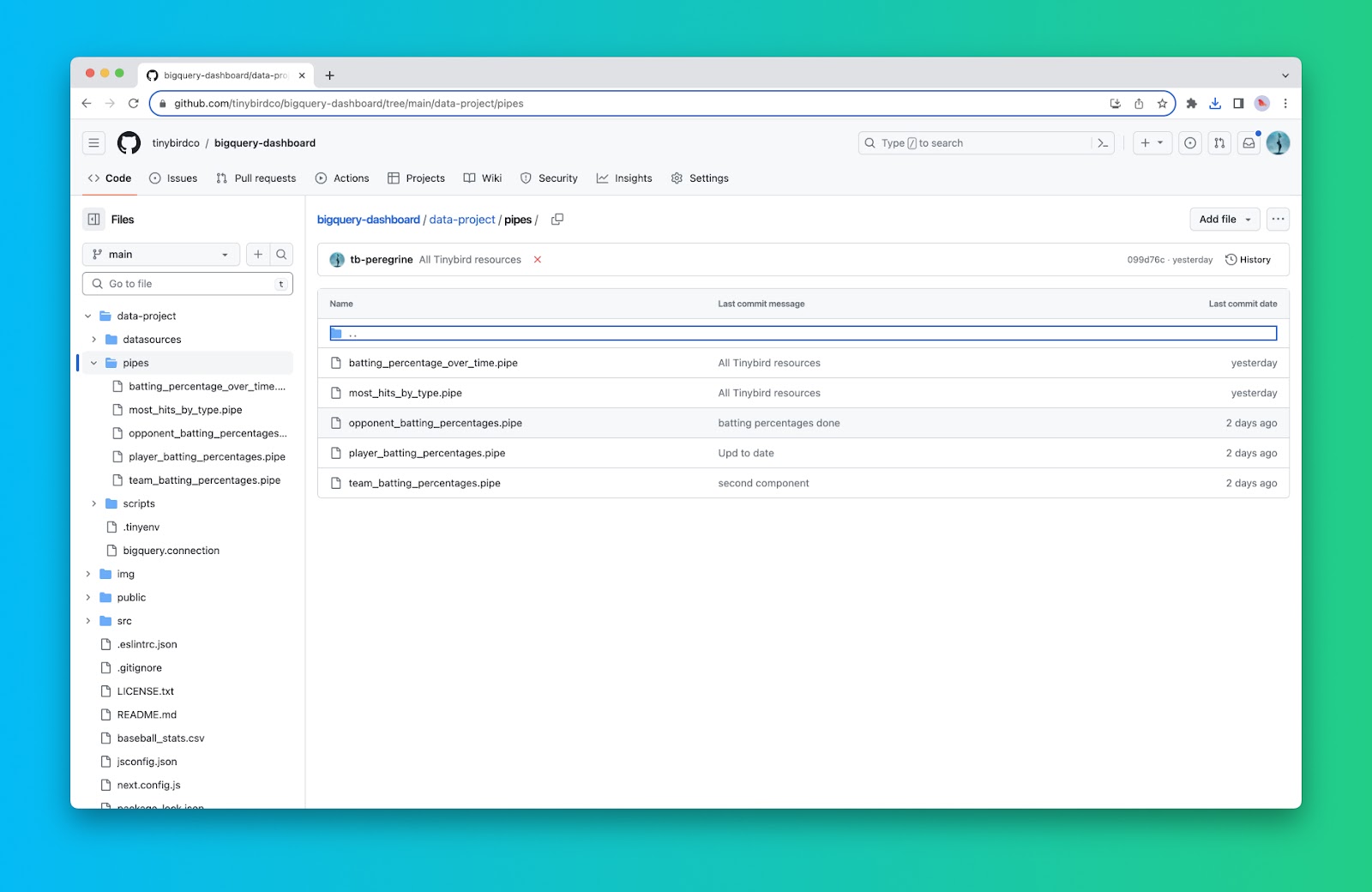
<h3 id="step-5-publish-your-pipes-as-apis">Step 5: Publish your Pipes as APIs</h3><p>The magic of Tinybird is that you can instantly publish your Pipes as fully-documented, scalable REST APIs in a click. From the Pipe definition in the Tinybird UI, click “Create API Endpoint” in the top right corner, select the node you want to publish, and you’re done. Make sure to name your Pipe something description, as the Pipe name will be used as the URL slug for your API endpoint.</p><p>In the project repository, you’ll find 5 <code>.pipe</code> files in the <code>pipes/</code> directory that define the 5 API endpoints we’ll use to build our real-time dashboard:</p><figure class="kg-card kg-image-card kg-card-hascaption"><img src="https://lh7-us.googleusercontent.com/uSeQJ2rmf8QffeHEJWoTtdZhXkco6UD6wfwe8_0GwX81qywI6g0zVrTyrSXcRZAiAKUCOEPPaNo54Vn7UIEUFxNtKo1SJigCjq8YQc7RXCvc80i9DWf3a9v7ElwNTvXn3eT9v7DJMIHJC90xHnnAQb4" class="kg-image" alt="A GitHub screenshot showing 5 Tinybird Pipe files" loading="lazy" width="1600" height="1040"><figcaption><span style="white-space: pre-wrap;">There are 5 Tinybird Pipes in the GitHub repo, each exposes a real-time API Endpoint.</span></figcaption></figure><h3 id="step-6-create-a-nextjs-app">Step 6: Create a Next.js app</h3>
<!--kg-card-begin: html-->
<div class="tip-box"><div class="tip-box-container"><div class="tip-box-title">Note</div><div class="tip-box-content">For this project, my goal was to build a JavaScript-based dashboard using a modern web framework, so I chose to use React (Next.js). But you can visualize Tinybird APIs just about anywhere, for example with an app-building tool like <a href="https://www.tinybird.co/blog-posts/service-data-sources-and-retool">Retool</a> or a monitoring platform like <a href="https://www.tinybird.co/blog-posts/tinybird-grafana-plugin-launch">Grafana</a>.</div></div></div>
<!--kg-card-end: html-->
<p>Create a Next.js app as follows:</p>
<!--kg-card-begin: html-->
<iframe width="100%" src="https://snippets.tinybird.co/XQAAAAKsAQAAAAAAAABBKUqGk9nLKvXOIIRy-hPaaG-lArNN9lCbCMCSYU_cLTEBpKxtp5bWE3V2pzAfQ0_Jx9Oc4gzLYuydFgDMoitOCFE3getFNZCfovEtDjOCtVB_YgA-pvJok5O9DRevJ3zdjYuTLUSLZBHZm3Vre_kriDVJeUmGGSahwL14-0de2FA35tw1dgBiN9aKEjn2vIe6sps0GKoDeTwC8U8dZXsZw48S1brQPbKK0zjYOM2b9P3S3BA_gkOySv6m0jhAzjgWra98UsLWvzu--7-nk4Sp0nZzRxYnVNBGc6iJKUtARekN39seG6Bdu9DrgP1ODeyViALXSKx3P_lmAvU/embed"></iframe>
<!--kg-card-end: html-->
<p>Tinybird APIs are accessible via Auth Tokens. In order to run your dashboard locally, you will need to update your <code>env.local</code> file with the following:</p>
<!--kg-card-begin: html-->
<iframe width="100%" src="https://snippets.tinybird.co/XQAAAALDAAAAAAAAAABBKUqGk9nLKvkUMldDaTcKNw7aTXzSVR12s1Nx21g9nCs7qsYrkJsvX5Eg-yiwUMuo-cmHNW8I2DQJU0YUkcEcCiSq5iV9HD1EbbMo-VNCjGhDhce1Fyr7F_BRnxCGrI4biYHzIrlIisjfD4zvsVCOJS5r8phe8Am5a76CXgNfk7yATS1O91VX0BC2rUllCqMQVcPWxD9oVeD2372qxDwPc__8pBuA/embed"></iframe>
<!--kg-card-end: html-->
<h3 id="step-7-define-your-apis-in-code">Step 7: Define your APIs in code</h3><p>To support the dashboard components you’re about to build, you might find it helpful to create a helper file that contains all your Tinybird API references. In the project repo, that’s called <a href="https://github.com/tinybirdco/bigquery-dashboard/blob/main/src/app/services/tinybird.js"><code>tinybird.js</code></a> and it looks like this:</p>
<!--kg-card-begin: html-->
<iframe width="100%" src="https://snippets.tinybird.co/XQAAAALiBAAAAAAAAABBKUqGk9nLKvAVVjmvHOYW1QtiWhIG_B3HO123t8quDOdZrZbdReT6B57Wo33eE8la4QFfeNf6vtO28zbM4QWIPaigw9BrzXMiXksky4NAoH6cn30baEwjZKeYPiidijHNNfRI_LKaaFpc2UrtRj81jgBqhfKPmoQMUOghgOHPDT7n2pgGKGw3dXLb51RFs1m1PnH3lvVWh93at6sKTiNvIleTwVPJlMgHvnQ_OxjWJ0-P8umjjki5GfL5w1C4R0GHgYlmmd_ycPYr4CueLEoMDz8Vn_KyK7LBo5PR_qndF0C5ljLgsyx6iFASMsqlH0KAO2v1nnXIyrCwtCJO_bOhS7e7uTXHr3Xv7IG0B1RXl32Pvv_Ml2PvuhrEo1cYlQ9ksit6LCnEFyIzzDa9UdcEdy8OqluAseq8_OlMngukk9ELPzEKrMRE1SEsSyh79K3fyYsTw-oWLLRuVDQOKrR1GN2-4GM9ZsyIKu9QM2QFipq4P5ZHkA4O7B6h5aS48dzGqokh620v4LSPfDpEPwVTGDYJ21GX8s7UYe6C5bcyS8n7FDY0nx6L4z9hnRVJu1wzTReS__CqJMk/embed"></iframe>
<!--kg-card-end: html-->
<h3 id="step-8-build-your-dashboard-components">Step 8: Build your dashboard components</h3><p>For this tutorial, we’re using the <a href="https://tremor.so">Tremor React library</a>, because it provides a clean UI out of the box with very little code. You could easily use <a href="https://echarts.apache.org/en/index.html">ECharts</a> or something similar if you prefer.</p><p>Our dashboard contains 3 <a href="https://www.tremor.so/docs/components/bar-chart">Bar Charts</a>, 1 <a href="https://www.tremor.so/docs/components/area-chart">Area Chart</a>, and 1 <a href="https://www.tremor.so/docs/visualizations/bar-list" rel="noreferrer">Bar List</a>. We’ll use Tremor <a href="https://www.tremor.so/docs/components/card">Cards</a> to display these components, and each one will have an interactive input. In addition, we’ll show the API response latency underneath the chart (just so we can see how “real-timey” our dashboard is).</p><p>Here’s the code Player Batting Averages component (<a href="https://github.com/tinybirdco/bigquery-dashboard/blob/main/src/app/components/playerBattingPercentages.js"><code>playerBattingPercentages.js</code></a>):</p>
<!--kg-card-begin: html-->
<iframe width="100%" src="https://snippets.tinybird.co/XQAAAAK6CQAAAAAAAABBKUqGk9nLKwj93vpCB_ZPFFtoXojkofnhcJCo6R8RCTa7kJhr-m5tn-mNG-PZGc-vNhvtHeMI5sKfXms0YRB9YJUeEZpTnI7RQrpPr0irGmK2spedf8Yeve8FPh1kAZ9eqS3LI-9yEfUU0kV8lA52du8WWk0XwGi88IU0pbQpMU3-vx3j9baWAU_ze7PAecvkQTjx7KjiAW7h0B9AH7DETyPmuKIqFgc3CMHHjSEUoyDN6uAE4g1m-kg5L_KBmLFw6TWEAxAIKcqDbh9UiCpOKkf6ZlytF6i7_x3q5YuUCV-vCZOlzlTTyY5lnHoyyBGK-cZxnZhr7g2IfT2GmBaD97J3Ajsa9b96Ai8F-yzEyQccPKlLV7TUPayd43Nj8cn5ptlDvvY0J0e66YxbMwJYFI_w1yjZKwYC8_xXQWjjlnVKI0X33HAwktTyoEw61x13qCya3hVK7hfO6yuxkm2H-u2ujKNtMfnjfMghVr3nDMuSvsYW-0o5ktz86xvAvXn7153wcJGESaE53oWJClcIZW6_KQsXzY5tZjmyyaxUrjKRnEET2QyqzYpvhLWrjefGl0-BHbsiXXvntIXzxPkhQCFK8OVMFsABSkv5_Ma_3F4FvbIB8eFQJr5ybqV1x-A9N40tTvALcXd8Q16FNCCRlsYc-Q4J8wnAydWd9WhBEpSdhk-4XFLf7cZ-o-1hsGuGCad1Uf7yg8qSEEKrFaGpYxM_40UbhDnNZ7BHwtUs8ocTdXIkfGhwv8yNrAMDOnkdAEupqr6f2NONtzrJ28YEQyY3zO4R1QOSlMOq3fiF2hDFGQb3Sl0cnKyI9Z9mcykfMbK_kIiMhdqCckxS9jtQ8AACqDidvtpt8O_ycj-VRhx56D0IT9U9vrZ5P6LXMtB3DXsAkS7D4N5vb01i3oRgJywhROxf-oFj3HgPQNEuz7dbko2HzyXsJUTJIIOiKWdA1AmZEls4cqORSnKLnJSO1MqgJFGhM2g0LGl2YIQE8eYXx7G5WmJSxXBWoJqqeUHsEtT-RwE5V_eIjbyuMob1xQRQh_FxKPEIA2d4baEwjz_3dC_J0-SQUv_1i85RIjJ0-LYJ-I3v6hcR9xqpulL-AbkYm4iD9jkNXfE_3Ljc7MucFNt2yJGiE_UM48w7OISFJV9F9r7wlCqqNOPrERd-PQBYrTeIouXnQuqpxX00NtHtrb98_pKa0SWPBDeEDIgHMcTxAkKbHqEg6G3YcOM8ja54i1PZC9H15JneS6mdOefOYRDJNXMqXX6VQi1GTYwww_9Uc0TMjasK2NYwaXH__MAnGg/embed"></iframe>
<!--kg-card-end: html-->
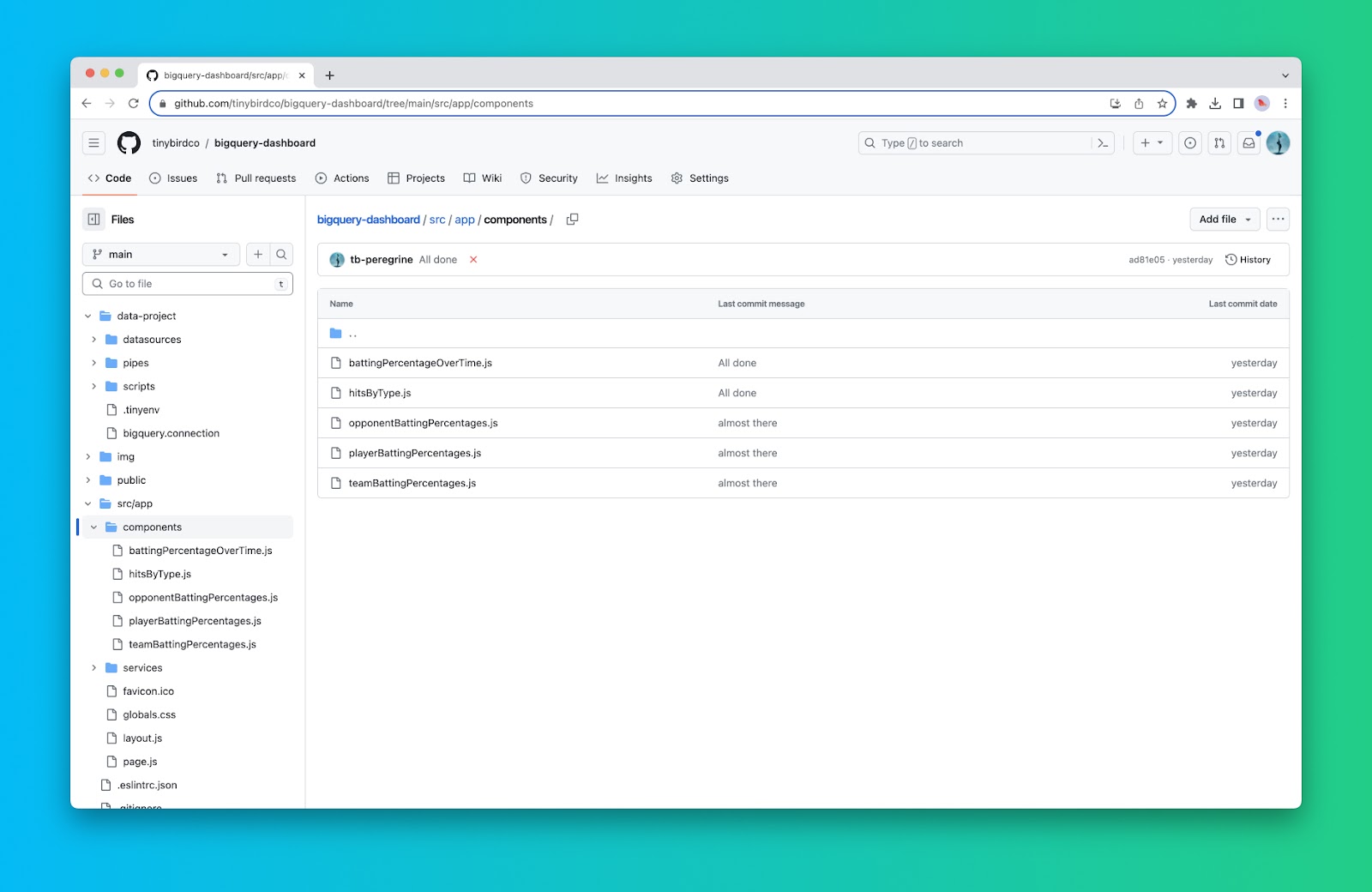
<p>You’ll find 5 total dashboard components in the <a href="https://github.com/tinybirdco/bigquery-dashboard/tree/main/src/app/components"><code>src/app/components</code></a> directory of the repository. Each one renders a dashboard component to display the data received by one of the Tinybird APIs.</p><figure class="kg-card kg-image-card kg-card-hascaption"><img src="https://lh7-us.googleusercontent.com/jpnO9s7vq_JI39SGjif6EwFxaxOowejSQfAd-6D71XPB1vi1_aTgzD6RiyL1VsDbqnBVsc0tosKgq03Dcq-_iHNo_bZwuveZhi7kGlvZyZWizeVIO8NBEx5c59OBVpYznzOx7Y9X96yKaF6Z4phASTQ" class="kg-image" alt="A GitHub screenshot showing 5 real-time dashboard components written in JavaScript." loading="lazy" width="1600" height="1040"><figcaption><span style="white-space: pre-wrap;">The GitHub repo has 5 real-time dashboard components that you can iterate off of.</span></figcaption></figure><h3 id="step-9-compile-your-components-into-a-dashboard">Step 9: Compile your components into a dashboard</h3><p>Finally, you’ll update your <a href="https://github.com/tinybirdco/bigquery-dashboard/blob/main/src/app/page.js" rel="noreferrer"><code>page.js</code></a> file to render a nicely laid out dashboard with our 5 components. This file gets your Tinybird Auth Token from your local environment variables to be able to access the Tinybird APIs, then renders the 5 components we just built in a Tremor <a href="https://tremor.so/docs/layout/grid">Grid</a>.</p><p>To visualize your dashboard, run it locally with <code>npm run dev</code> and open <a href="http://localhost:3000"><code>http://localhost:3000</code></a>. You’ll see your complete real-time dashboard! </p><p></p><figure class="kg-card kg-video-card kg-width-regular" data-kg-thumbnail="https://tinybird-blog.ghost.io/content/media/2023/10/bigquery_dashboard_thumb.jpg" data-kg-custom-thumbnail="">
            <div class="kg-video-container">
                <video src="https://tinybird-blog.ghost.io/content/media/2023/10/bigquery_dashboard.mp4" poster="https://img.spacergif.org/v1/3360x2100/0a/spacer.png" width="3360" height="2100" loop="" autoplay="" muted="" playsinline="" preload="metadata" style="background: transparent url('https://tinybird-blog.ghost.io/content/media/2023/10/bigquery_dashboard_thumb.jpg') 50% 50% / cover no-repeat;"></video>
                <div class="kg-video-overlay">
                    <button class="kg-video-large-play-icon" aria-label="Play video">
                        <svg xmlns="http://www.w3.org/2000/svg" viewBox="0 0 24 24">
                            <path d="M23.14 10.608 2.253.164A1.559 1.559 0 0 0 0 1.557v20.887a1.558 1.558 0 0 0 2.253 1.392L23.14 13.393a1.557 1.557 0 0 0 0-2.785Z"></path>
                        </svg>
                    </button>
                </div>
                <div class="kg-video-player-container kg-video-hide">
                    <div class="kg-video-player">
                        <button class="kg-video-play-icon" aria-label="Play video">
                            <svg xmlns="http://www.w3.org/2000/svg" viewBox="0 0 24 24">
                                <path d="M23.14 10.608 2.253.164A1.559 1.559 0 0 0 0 1.557v20.887a1.558 1.558 0 0 0 2.253 1.392L23.14 13.393a1.557 1.557 0 0 0 0-2.785Z"></path>
                            </svg>
                        </button>
                        <button class="kg-video-pause-icon kg-video-hide" aria-label="Pause video">
                            <svg xmlns="http://www.w3.org/2000/svg" viewBox="0 0 24 24">
                                <rect x="3" y="1" width="7" height="22" rx="1.5" ry="1.5"></rect>
                                <rect x="14" y="1" width="7" height="22" rx="1.5" ry="1.5"></rect>
                            </svg>
                        </button>
                        <span class="kg-video-current-time">0:00</span>
                        <div class="kg-video-time">
                            /<span class="kg-video-duration">0:18</span>
                        </div>
                        <input type="range" class="kg-video-seek-slider" max="100" value="0">
                        <button class="kg-video-playback-rate" aria-label="Adjust playback speed">1×</button>
                        <button class="kg-video-unmute-icon" aria-label="Unmute">
                            <svg xmlns="http://www.w3.org/2000/svg" viewBox="0 0 24 24">
                                <path d="M15.189 2.021a9.728 9.728 0 0 0-7.924 4.85.249.249 0 0 1-.221.133H5.25a3 3 0 0 0-3 3v2a3 3 0 0 0 3 3h1.794a.249.249 0 0 1 .221.133 9.73 9.73 0 0 0 7.924 4.85h.06a1 1 0 0 0 1-1V3.02a1 1 0 0 0-1.06-.998Z"></path>
                            </svg>
                        </button>
                        <button class="kg-video-mute-icon kg-video-hide" aria-label="Mute">
                            <svg xmlns="http://www.w3.org/2000/svg" viewBox="0 0 24 24">
                                <path d="M16.177 4.3a.248.248 0 0 0 .073-.176v-1.1a1 1 0 0 0-1.061-1 9.728 9.728 0 0 0-7.924 4.85.249.249 0 0 1-.221.133H5.25a3 3 0 0 0-3 3v2a3 3 0 0 0 3 3h.114a.251.251 0 0 0 .177-.073ZM23.707 1.706A1 1 0 0 0 22.293.292l-22 22a1 1 0 0 0 0 1.414l.009.009a1 1 0 0 0 1.405-.009l6.63-6.631A.251.251 0 0 1 8.515 17a.245.245 0 0 1 .177.075 10.081 10.081 0 0 0 6.5 2.92 1 1 0 0 0 1.061-1V9.266a.247.247 0 0 1 .073-.176Z"></path>
                            </svg>
                        </button>
                        <input type="range" class="kg-video-volume-slider" max="100" value="100">
                    </div>
                </div>
            </div>
            
        </figure><p>Notice the latencies in each dashboard component. This is the Tinybird API request latency. Note this is NOT using any sort of cache or query optimization. Each request is directly querying the 20,000 rows in the table and returning a response. As I interact with the dashboard and change inputs, the APIs respond.</p><p>In my case, that’s happening in just a few milliseconds. Now that’s a fast dashboard.</p><h2 id="real-time-analytics-for-bigquery-with-tinybird">Real-time analytics for BigQuery with Tinybird</h2><p>In this tutorial, you learned how to build a real-time JavaScript dashboard over BigQuery using Tinybird and Next.js. Tinybird is the <a href="https://www.tinybird.co/product">real-time analytics platform</a> that makes this possible. With Tinybird, you can quickly sync BigQuery tables into a platform optimized for <a href="https://www.tinybird.co/blog-posts/real-time-analytics-a-definitive-guide">real-time analytics</a>, create metrics with nothing but SQL, and publish those metrics as real-time APIs that scale to support thousands or millions of concurrent requests.</p><p>If you need to reduce latency with BigQuery, whether to <a href="https://www.tinybird.co/blog-posts/real-time-dashboard-step-by-step">build real-time dashboards</a> or any other <a href="https://www.tinybird.co/blog-posts/user-facing-analytics" rel="noreferrer">user-facing analytics</a> feature, Tinybird can be extremely useful. You can learn more about Tinybird by visiting the <a href="https://www.tinybird.co">website</a>, checking out the <a href="https://www.tinybird.co/docs">documentation</a>, or <a href="https://www.tinybird.co/request-a-demo">requesting a demo</a>. If you’re ready to start building, you can <a href="https://www.tinybird.co/signup">sign up for free here</a>.</p>