Connect Microsoft Power BI to Tinybird
Microsoft Power BI can connect to Tinybird using the ClickHouse® Data Source, taking advantage of Tinybird's ClickHouse® HTTP protocol compatibility.
The ClickHouse® connection to Tinybird is read-only. You can use it to query and analyze data from your Tinybird data sources, but you cannot modify data through this connection.
Prerequisites
- Microsoft Power BI
- A Tinybird workspace with data sources
- A Tinybird Auth Token with scopes
WORKSPACE:READ_ALLand optionallyORG_DATASOURCES:READ. See how to create it.
Install the ODBC Driver
Download the most recent ClickHouse® ODBC release.
Execute the .msi installer and follow the wizard.
Create a new connection
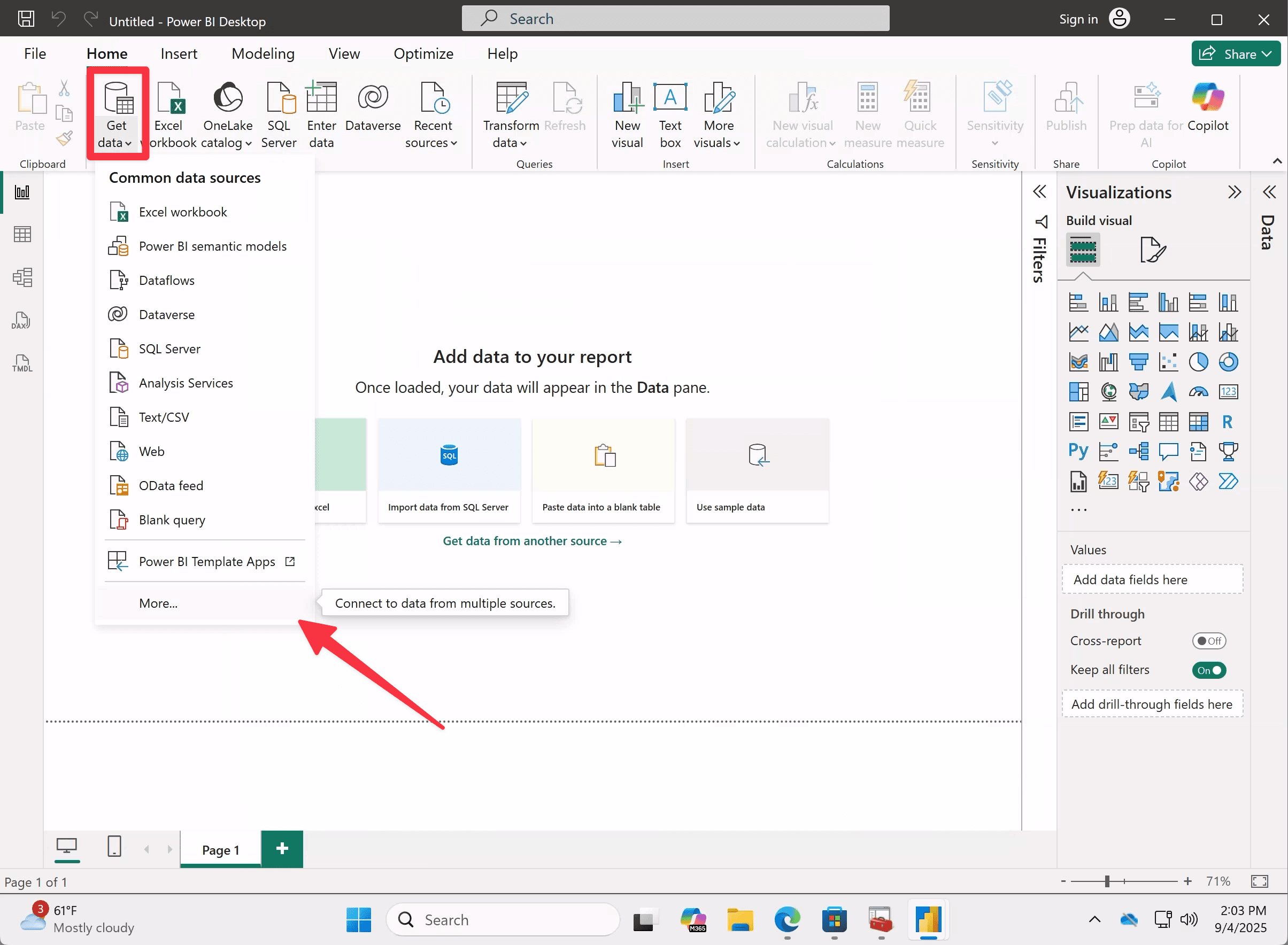
- On Power BI Desktop click Get Data
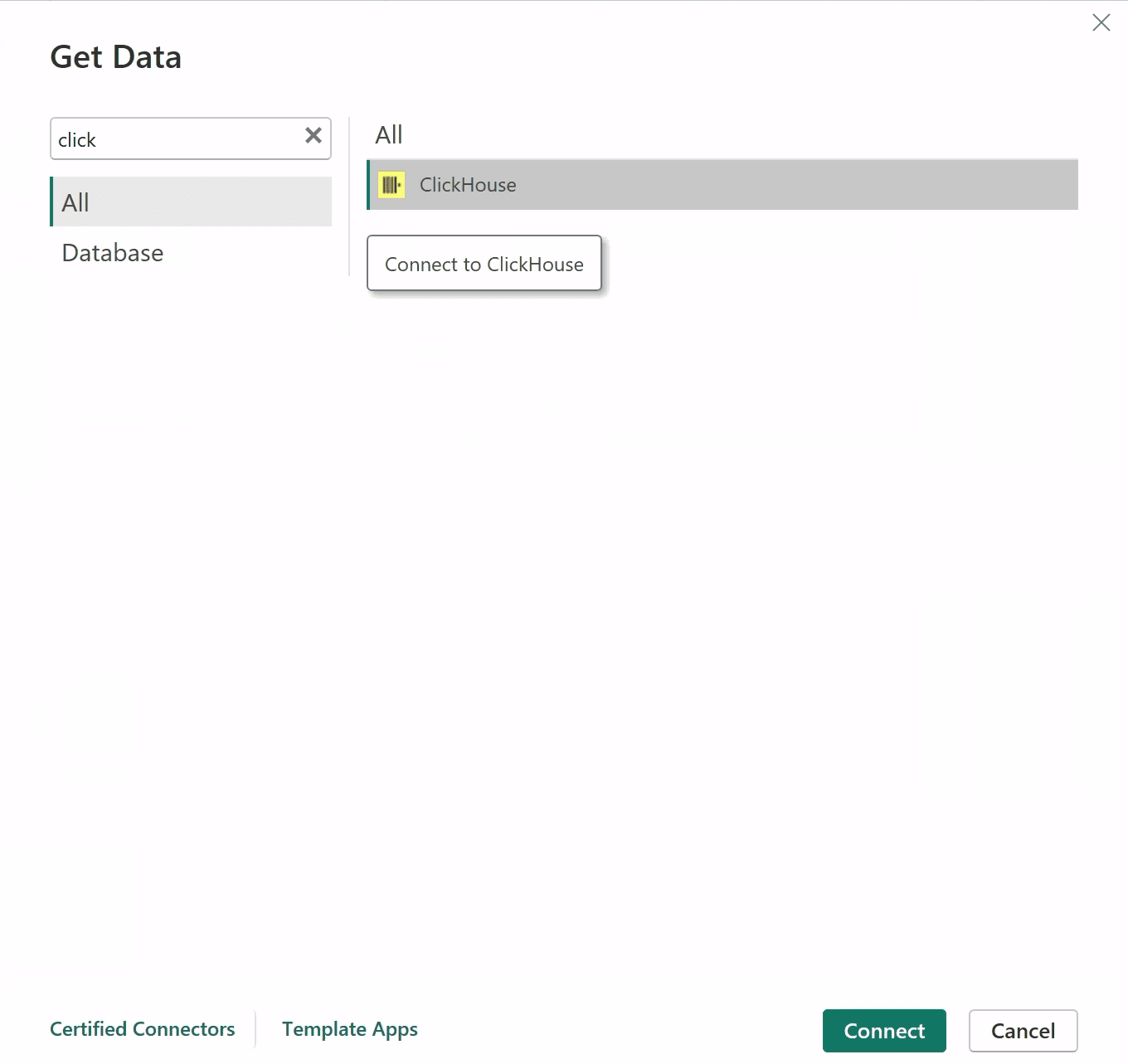
- Select ClickHouse®.
- Fill in the ClickHouse® database credentials.
Connection settings
Host: clickhouse.tinybird.co
Port: 443  # For HTTPS connections
Database Name: <WORKSPACE_NAME>  # Your workspace name
User name: <WORKSPACE_NAME>  # Your workspace name
Password: <TOKEN>  # Your Tinybird auth token
Use DirectQuery for querying Tinybird directly.
You should see the workspaces and tables in the Navigator view.
See the list of ClickHouse® hosts to find the correct one for your region.
Troubleshooting
Failed to verify certificate chain: CA not trusted
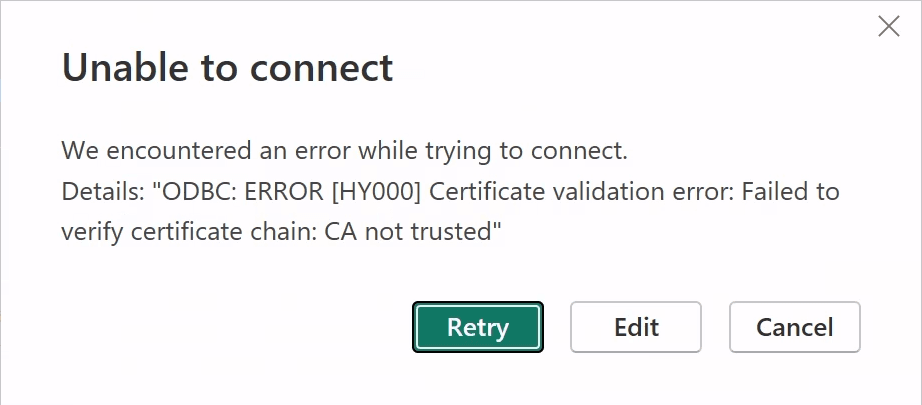
You need to install the root and intermediate certificates in your local Windows machine (see issue)
Follow this steps:
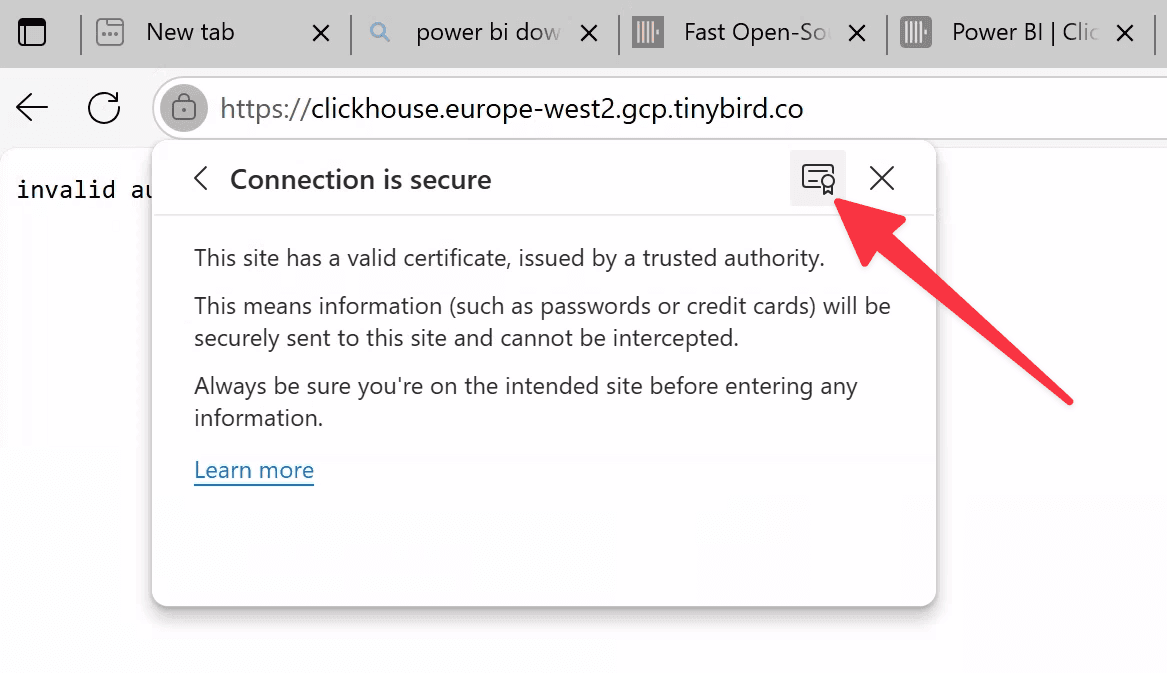
Open the ClickHouse® host URL in your browser:
clickhouse.tinybird.co
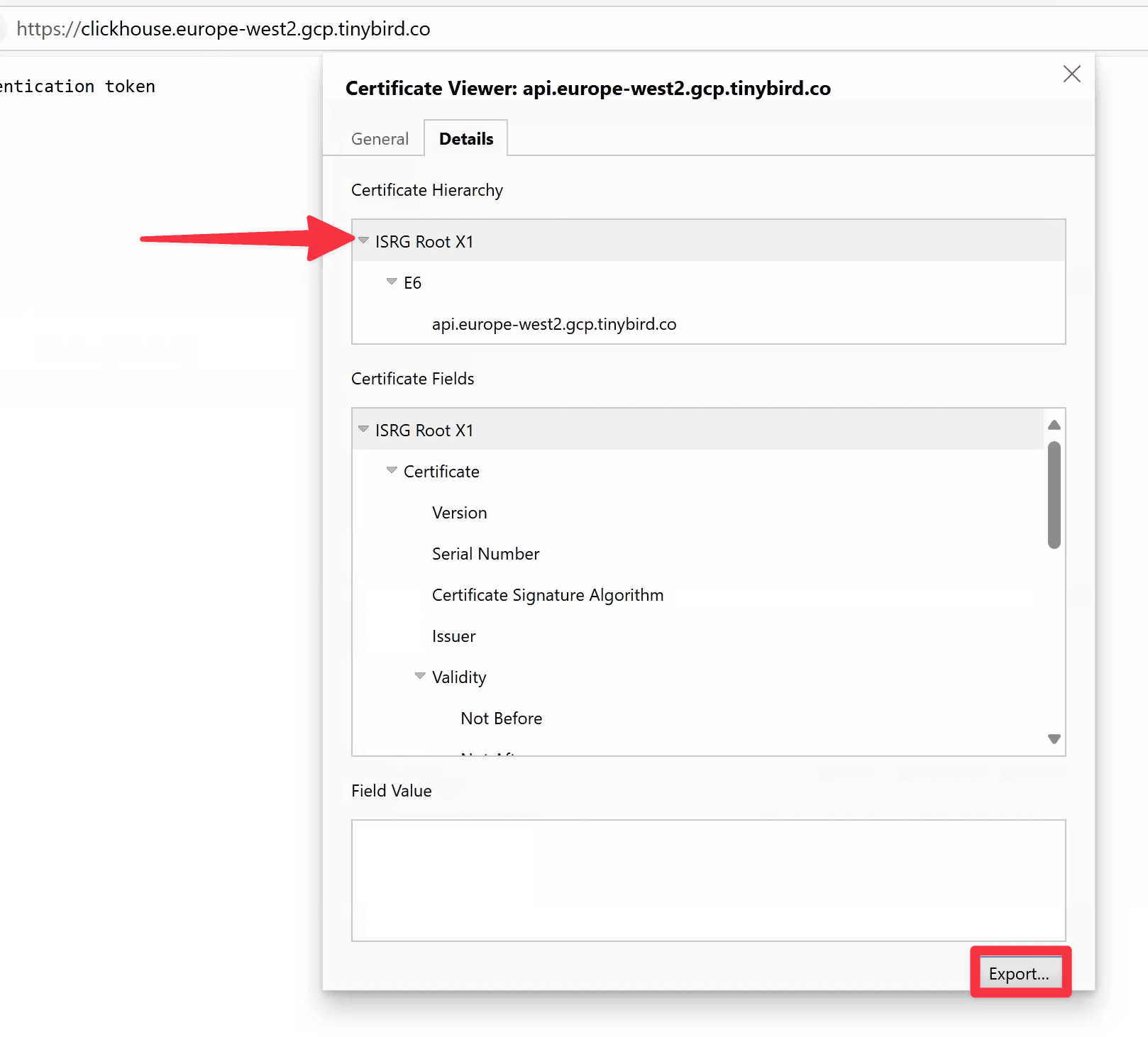
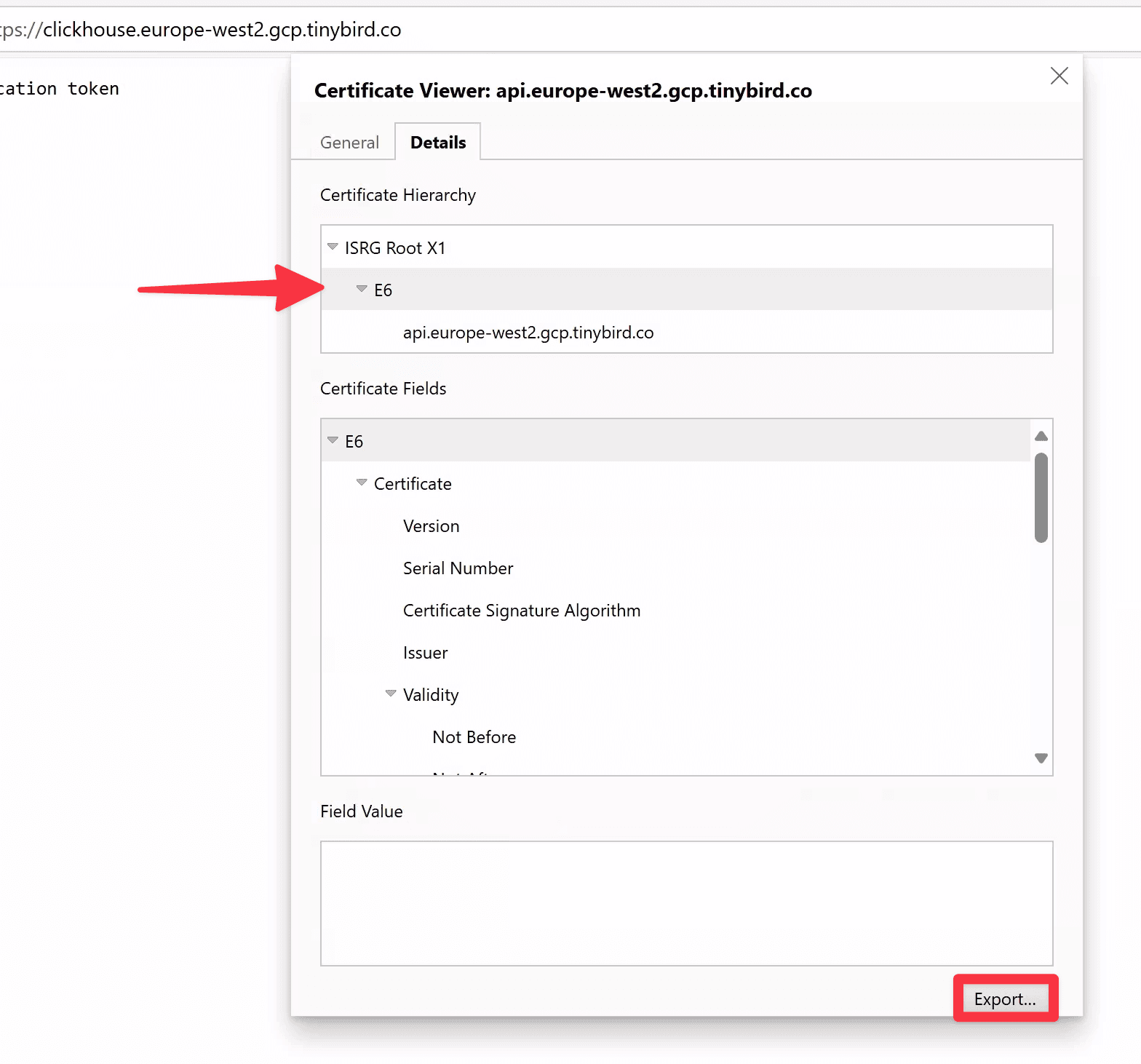
Export certificates from the browser:
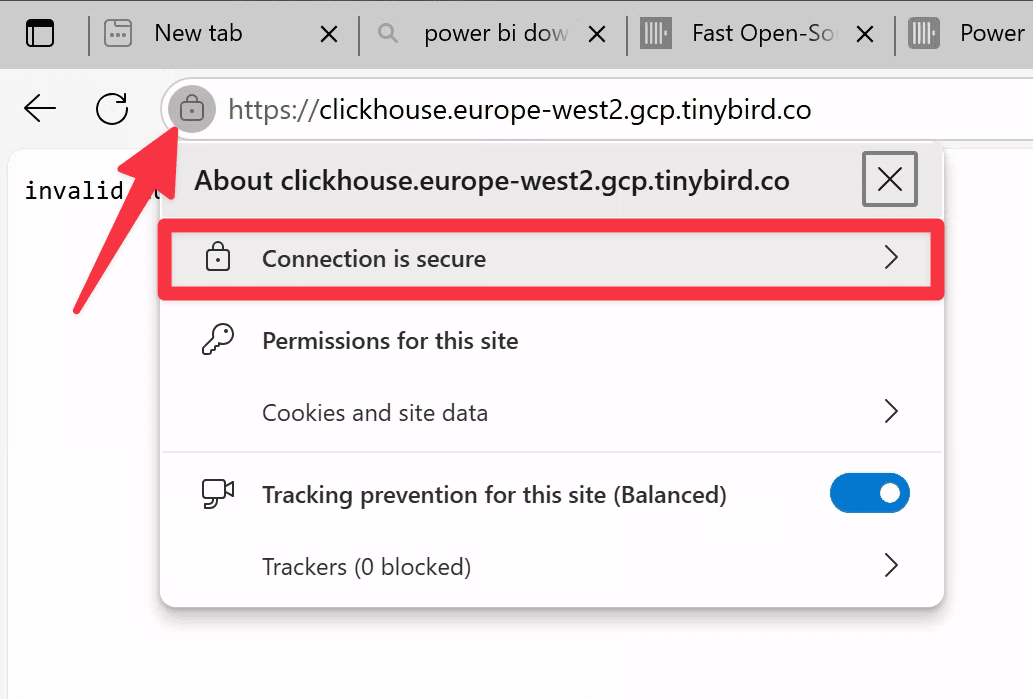
Install certificates in the local store:
- Win → write mmc → Run as administrator.
- File → Add/Remove Snap-in… → Certificates → Computer account → Local computer.
- Trusted Root Certification Authorities → Certificates → right click → All Tasks → Import… → select the root .cer file → Place in this store.
- Intermediate Certification Authorities → Certificates → import the intermediate .cer.
Close, save and restart Power BI Desktop