


"Where did Time Series go?"
We heard this after launching Forward. In Classic, Time Series had its own navigation entry. You'd click it, pick a Data Source, select a column, and see a chart. In Forward, we tucked it inside Explorations. Seemed tidy. Turns out, people missed having it front and center.
So we brought it back — and rebuilt it from scratch. This post covers the SQL patterns that made it work, the ClickHouse® gotchas we hit, and how we actually use it to debug production incidents.
The Architecture
Time Series works by translating user selections into SQL queries. Pick a Data Source or a Pipe, choose a time column, select an aggregation — and the system generates the appropriate SQL behind the scenes.
┌─────────────────────────────────────────────────────────────────────┐
│                         Time Series                                 │
├─────────────────────────────────────────────────────────────────────┤
│                                                                     │
│                      ┌─────────────────┐                            │
│                      │  Configuration  │                            │
│                      │  Object         │                            │
│                      └────────┬────────┘                            │
│                               │                                     │
│               ┌───────────────┴───────────────┐                     │
│               ▼                               ▼                     │
│      ┌─────────────────┐             ┌─────────────────┐            │
│      │  Table Query    │             │   Chart Query   │            │
│      │    (values)     │             │  (time buckets) │            │
│      └────────┬────────┘             └────────┬────────┘            │
│               │                               │                     │
│               ▼                               ▼                     │
│      ┌─────────────────┐             ┌─────────────────┐            │
│      │  Dimensions     │────────────▶│  Line/Bar       │            │
│      │  Table          │  (colors,   │  Chart          │            │
│      │                 │  visibility)│                 │            │
│      └─────────────────┘             └─────────────────┘            │
│                                                                     │
└─────────────────────────────────────────────────────────────────────┘
A TimeSeriesConfig object holds everything: Data Source name, time column, aggregation function, group-by columns, filters, time range, granularity, and chart type.
// timeseries.ts

export const EMPTY_TIME_SERIES_CONFIGURATION: TimeSeriesConfig = {
  name: '',
  columnName: '',
  visualize: '',
  where: '',
  groupBy: '',
  lastMinutes: 1440, // 1 day
  granularity: 3600, // 1 hour
  maxDimensions: 20,
  visType: 'line',
  having: '',
  startDateTime: '',
  endDateTime: '',
  realtime: 0
}
Two SQL builders transform this into executable queries. The table query returns dimension values and their totals — what groups exist in your data. The chart query returns time-bucketed values — how those groups change over time. Both queries share the same configuration, and the table controls what's visible in the chart: click a dimension row to show or hide that series.
The SQL Challenge
Generating correct time series SQL is harder than it sounds. Here's where we spent most of our debugging time.
Filling Time Gaps
ClickHouse® only returns rows that exist. If no events happened between 2am and 5am, those hours don't appear in results. Your chart just draws a line from 2am straight to 5am — hiding the outage entirely.
The fix: generate all time buckets explicitly, then join with your actual data. We use two approaches depending on the query.
The first generates buckets with arrayJoin:
SELECT toDateTime(arrayJoin(range(
  toUInt32(toStartOfInterval(_s, toIntervalSecond(_interval))),
  toUInt32(toStartOfInterval(_e, toIntervalSecond(_interval))),
  _interval
))) as time
The second uses a WITH clause with FROM numbers() — useful when you need more control over the generated range:
WITH toStartOfInterval(now(), INTERVAL 1 HOUR) as _end,
     _end - INTERVAL 24 HOUR as _start
SELECT _start + (number * 3600) as time
FROM numbers(24)
Both approaches create every time bucket in the range. A full outer join with your actual data ensures every bucket appears in the result. Missing data shows as null, which renders as a gap in the chart — exactly what you want.
Timestamp Alignment
When grouping by 10-second intervals, an event at second 14 needs to land in the 10-20 bucket, not create its own. We use toStartOfInterval() everywhere to snap timestamps to their bucket boundaries:
SELECT toStartOfInterval(timestamp, INTERVAL 10 SECOND) as bucket
Without this, you get misaligned data points and charts that don't add up. Every timestamp in your time column needs to go through this function before aggregation.
Adaptive Granularity
A 1-hour granularity looks wrong on a 5-minute time range (too few points) and on a 30-day range (too many points). The SQL builder selects granularity based on time span:
| Time Range | Granularity |
|---|---|
| < 10 minutes | 1 second |
| < 1 hour | 20 seconds |
| < 12 hours | 30 seconds |
| < 24 hours | 5 minutes |
| Default | 1 hour |
This also acts as a guardrail. Automatic granularity selection prevents users from accidentally requesting a year of data at second-level resolution — which would generate millions of data points and slow the query to a crawl.
UI Polish
A few small touches that make the experience feel right:
Split-screen schema inspection. Click the Data Source name and a panel opens showing columns, types, sample data, and statistics. Check the schema while selecting columns for visualization.
Query cancellation. Long time ranges can generate slow queries. Users can cancel and try a narrower range instead of waiting for a timeout. The UI immediately shows "Query cancelled" and lets you adjust parameters.
Workspace sharing. Time Series can be private or shared with your entire workspace — a simple toggle. Non-owners can duplicate if they want to customize.
Chart types. Line charts emphasize continuity and trends — good for latency, throughput. Bar charts emphasize discrete buckets — good for counts. Switch with a single click.
Zoom syncs with time selector. When you drag to zoom into a spike, the time selector updates to match. The zoomed range becomes the new time range. Share a link and your colleague sees exactly what you see.
Observability Integration
One feature request kept coming up: "I see a chart in Observability, I want to explore it further."
Observability shows pre-built charts for ingest rates, endpoint latency, Kafka lag. But they're fixed views. You can't change the aggregation, add filters, or zoom into a specific time range. When you spot a spike in endpoint latency at 3:47am, you want to dig in.
We added a button that opens any Observability chart as a Time Series. The configuration is pre-populated with the same Data Source, columns, and aggregation. Now you can zoom into a specific time range, add filters, change aggregations, group by different dimensions, and save it to share with your team.
This bridges the gap between monitoring and investigation. Same data, different modes of interaction.
When the Alert Fires
Here's how it works in practice.
Last week we got an alert: a workspace was queueing a huge amount of import jobs. So we clicked through to Time Series.
Within a few minutes we used Time Series to find exactly what happened, using the filters we were able to find Workspace name and Data Source id
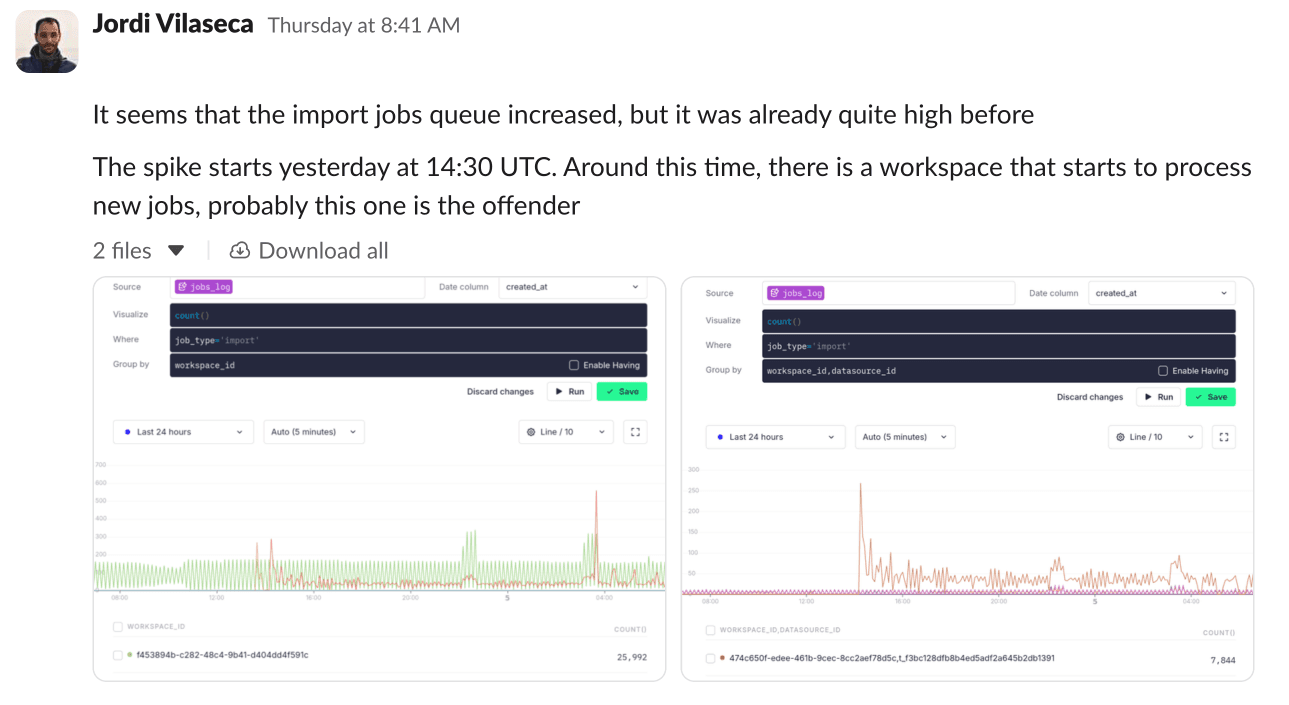
That's the workflow we built Time Series for. Alert fires, you investigate, you share what you found. No context switching, no manual SQL, no screenshots that go stale.
Try It
Time Series is available now in Forward. Look for it in your sidebar — it has its own spot again.
Pick a Data Source or Pipe. Select a column. See the chart.


