



As we rebuild Tinybird around coding agents, one thing becomes clear: the more agents handle creation and iteration, the more humans need better tools to understand, observe, and operate their production data.
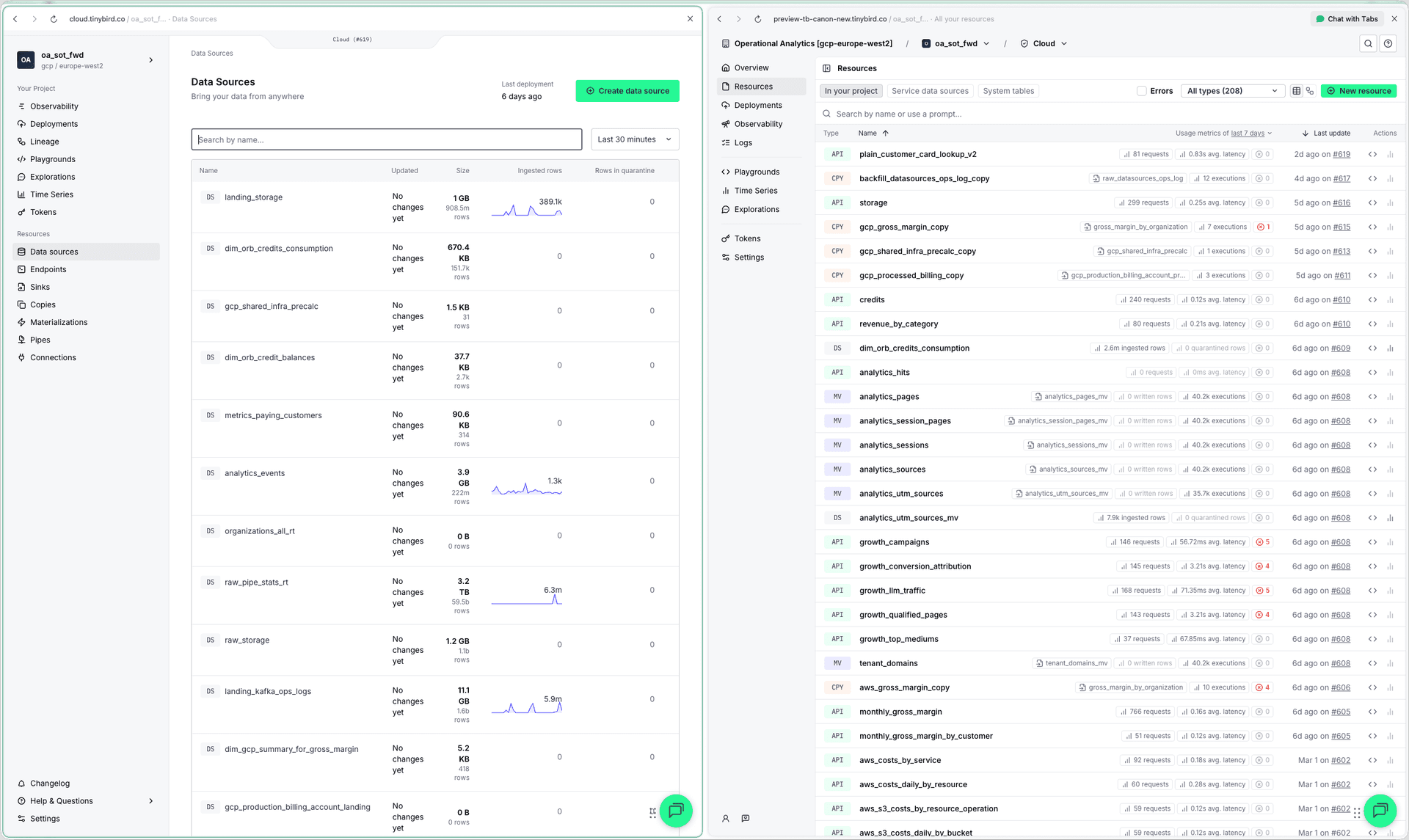
So we redesigned the Tinybird UI. One page to see every resource in your project with live metrics. A header that lets you switch environments without leaving the page. Split-screen panels so you can inspect any resource without losing your place. More information at every level, fewer clicks to get anywhere.
Always know where you are
Switching between Cloud, Local, and branches used to mean navigating to a different part of the sidebar. Losing your current context. If you had multiple workspaces, even worse.
The new header is a persistent breadcrumb:
Organization / Workspace / Environment
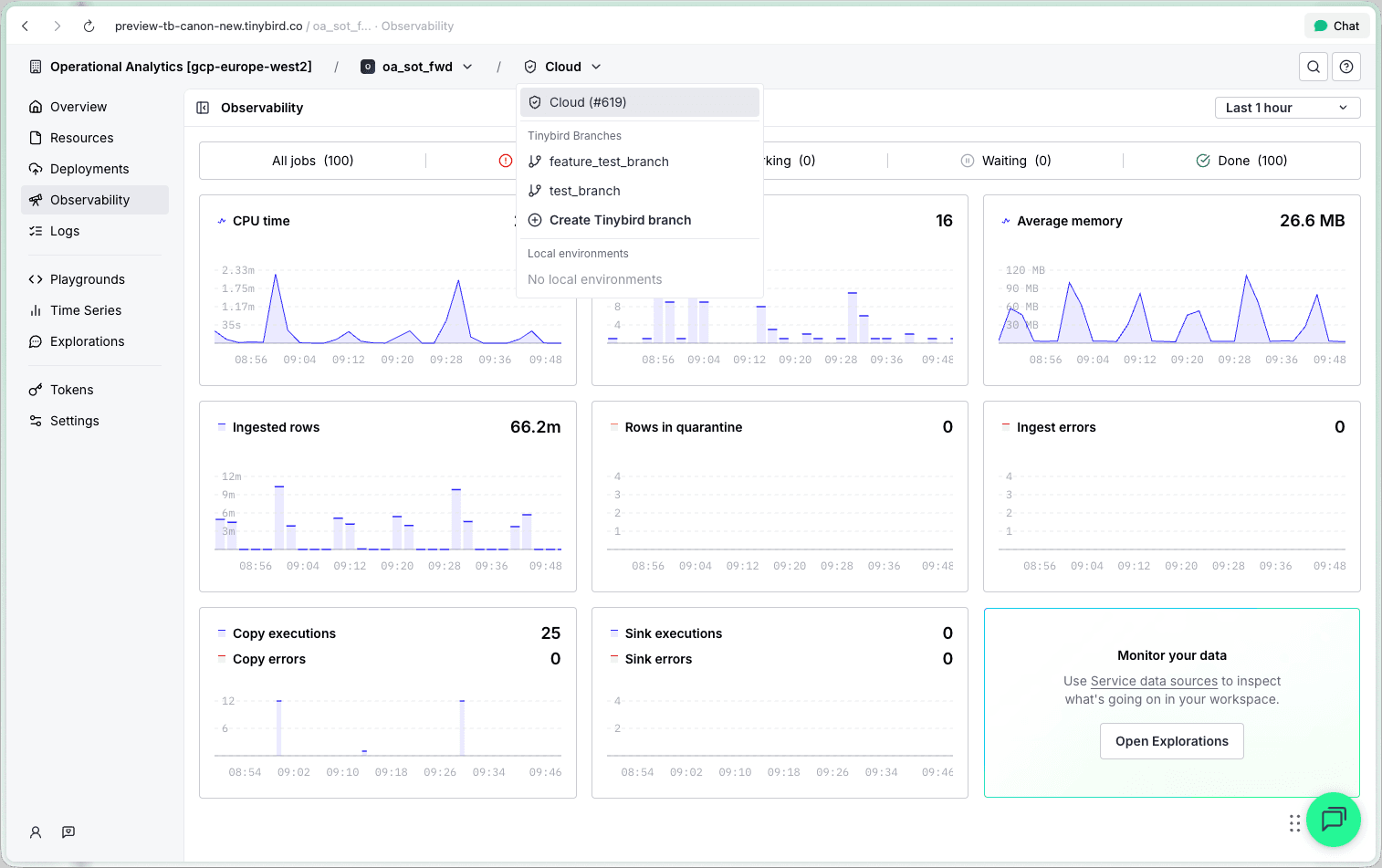
Click the workspace or environment to switch between workspaces, or between Cloud, Local, or any active branch without leaving the page you're on.
More space for your actual work
Writing SQL in the query editor while a 300px sidebar stares at you. Reviewing a data flow graph in just two thirds of your screen. You lose real estate to navigation chrome you're not actively using.
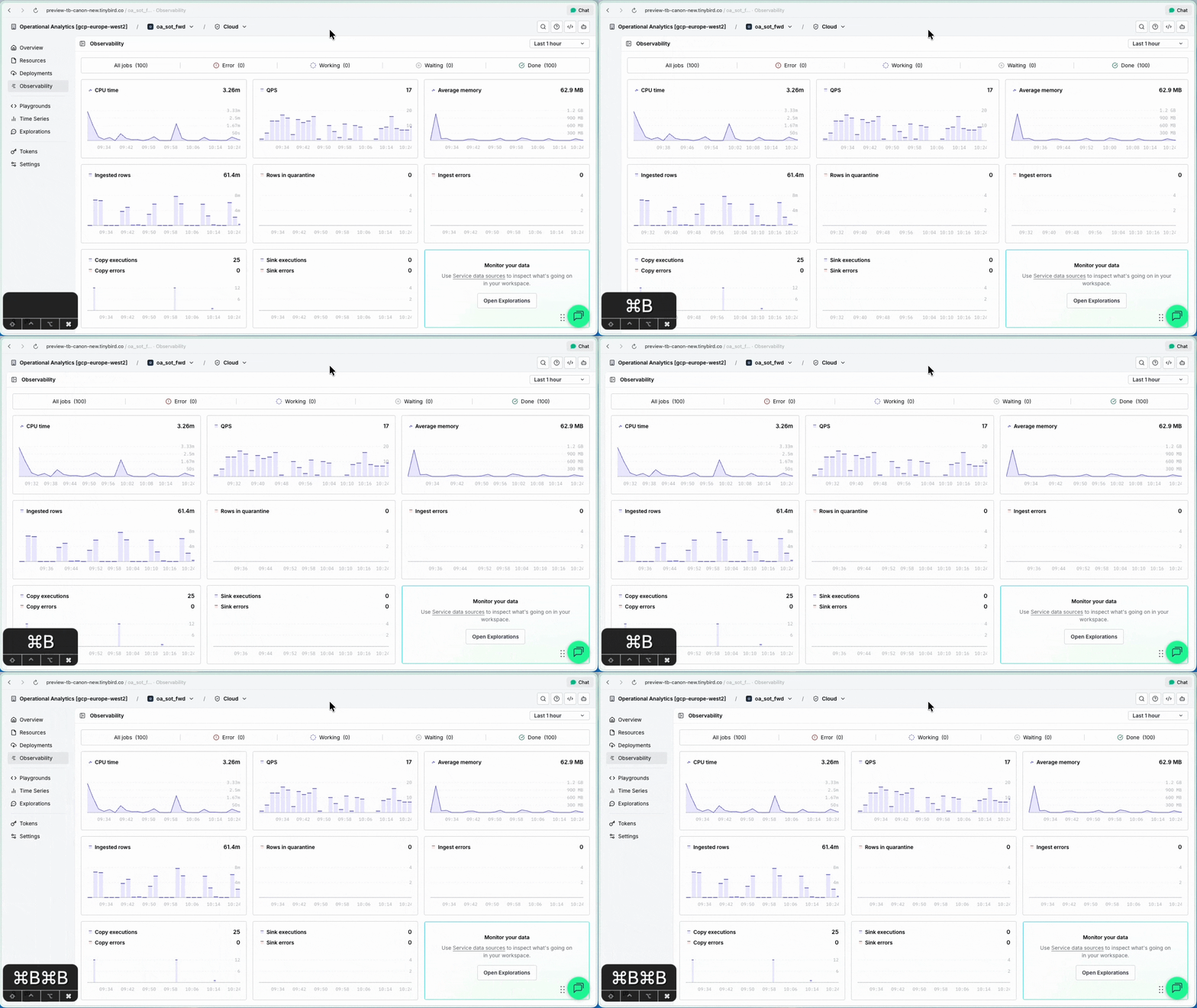
The sidebar shrank from 300px to 194px. More importantly, it's now fully collapsible to 12px with Cmd+B, giving you nearly the full viewport width. Playgrounds, Explorations, and Time Series, where horizontal space matters most, have two sidebars. Both fully collapsible.
The sidebar structure is also simpler. Instead of listing every resource type separately (datasources, pipes, endpoints, materializations, copies, sinks, connectors, tokens, deployments, observability, data flow, settings...), there are fewer, broader sections:
- Overview. Workspace health at a glance.
- Resources. All your datasources, pipes, endpoints, connections in one place.
- Deployments. Deployment history and status.
- Tokens. Token management.
- Playgrounds / Explorations / Time Series. The work bench in the UI.
Navigation within your workspace. Nothing else.
Workspace health at a glance
The Overview is the new landing page when you open a workspace. Instead of dropping you into a list of datasources, it gives you a single screen with everything you need to assess the state of your project.
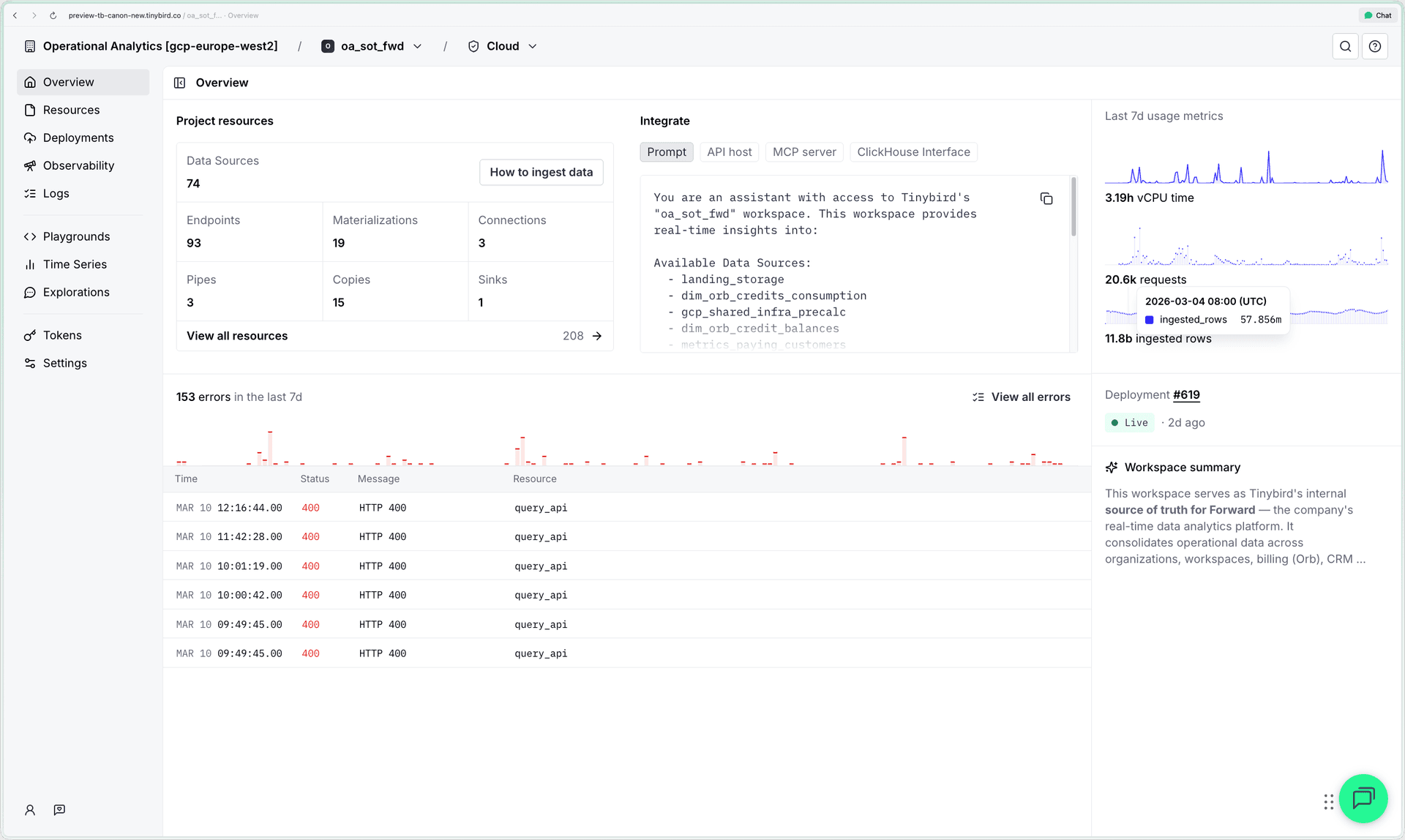
The left panel has two sections:
Project resources. A grid showing counts for every resource type: Data Sources, Endpoints, Materializations, Connections, Pipes, Copies, Sinks. Each cell links to the Resources page filtered by that type. You get immediate sense of project shape without clicking through anything.
Errors. A bar chart of errors over the last 7 days (aggregated from endpoint responses, datasource ingestion failures, and failed jobs) plus a table of the most recent errors with timestamp, status, message, and resource name. One click takes you to the full error log.
The right panel is a sidebar with:
Usage metrics. Sparkline charts for vCPU time, requests, and ingested rows (or average memory on the free plan) over the last 7 days. Enough to spot usage spikes without navigating to Observability.
Last deployment. Status badge, time ago, and the deployment summary for your live deployment. Links directly to the deployment detail.
Workspace summary. An editable markdown description of what the workspace does. There's an AI button that generates it automatically based on your datasources, endpoints, and pipes. Useful as context for onboarding teammates, or as a prompt you can copy-paste into an LLM.
There's also an Integrate section with tabs for the most common ways to connect to your workspace: a copy-pasteable AI prompt describing your resources, the API host URL with tokens, the MCP server URL for AI agents, and ClickHouse® interface connection parameters for BI tools.
See your whole project at once
This is the biggest change.
Previously, understanding your project meant clicking through separate pages for datasources, endpoints, pipes, materializations, copies, sinks, and connectors. Seven views. No way to get a complete picture without holding it all in your head.
Now there's one page: Resources.
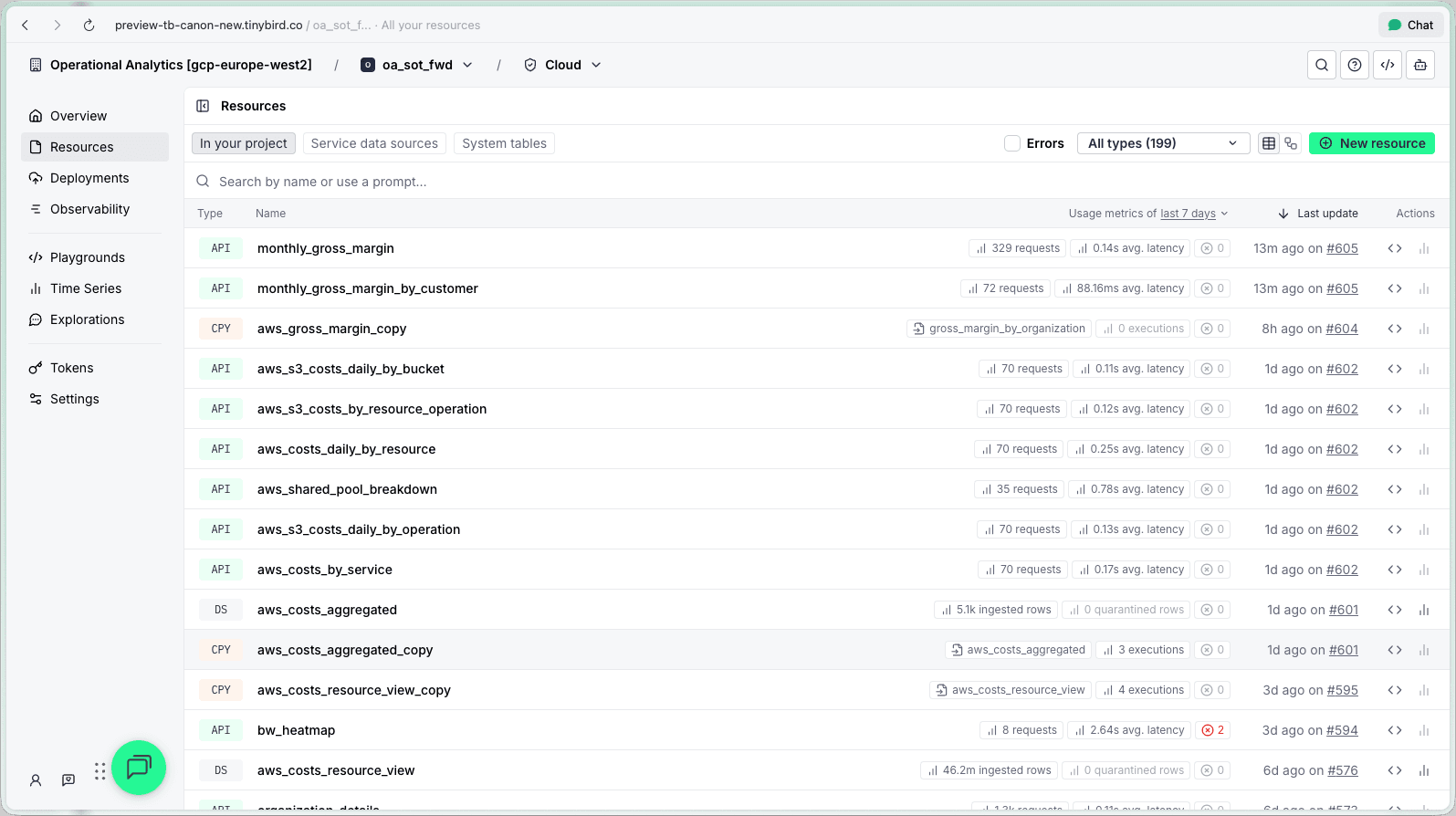
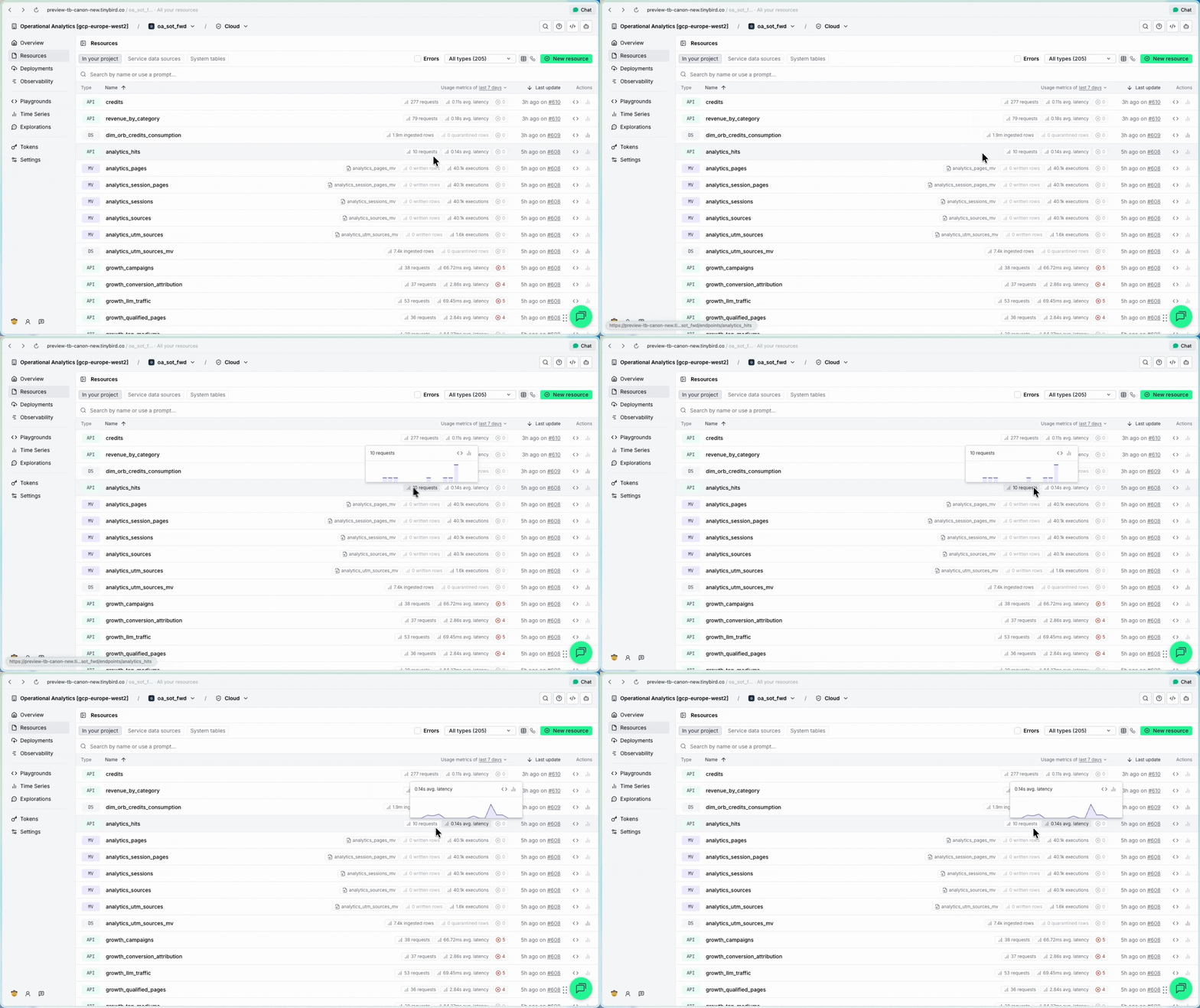
Every resource in your workspace, in a single table with inline metrics. At a glance you can see each resource's status, request count, error count, avg latency, last update time, and which datasources feed which endpoints. You can toggle between a list view and a lineage view (data flow graph) from the same page.
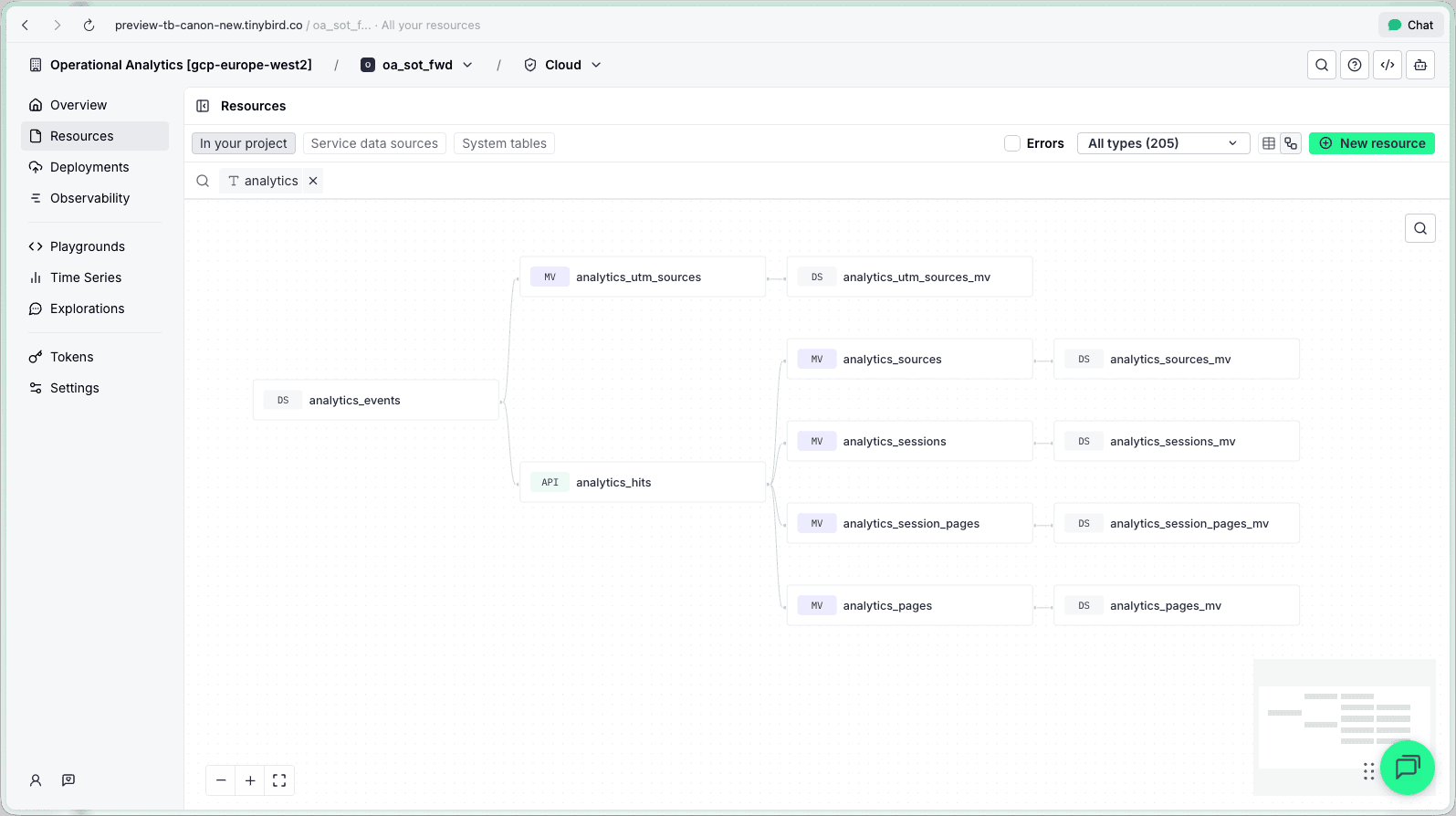
The page has three tabs:
- In your project. Your datasources, pipes, endpoints, connectors.
- Service data sources. Tinybird monitoring service datasources.
- System tables. ClickHouse® system tables.
Find what matters
The resource list has a composable filter bar. Structured filters compose as removable badges:
- Type. Datasource, endpoint, pipe, connection, materialization, copy, sink.
- Deployment ID. Resources from a specific deployment.
- Connection. Resources connected to a specific Kafka/S3/GCS connector.
- Errors. Only resources with errors.
- Usage metric. Conditions like
Requests > 1MorAvg latency > 100ms.
Combine them: Type: endpoint + Errors: has errors + Metric: avg_duration > 500 finds your slow, broken endpoints in one query. Metric filters support k and M suffixes, so you type 1M instead of 1000000.
When you have 40+ resources and something is erroring at 3am, this is the difference between finding it in seconds and clicking through pages hoping to spot a red badge.
Inspect without losing your place
Before, clicking a resource in a list took you to a detail page. You'd inspect it, hit back, lose your scroll position, maybe lose your filters. Repeat.
Now, clicking any resource opens its detail panel as a split screen to the right. Browse the list on the left, inspect on the right. Resize the panels. Close with Esc. Your filters, your scroll position, your context: all preserved.
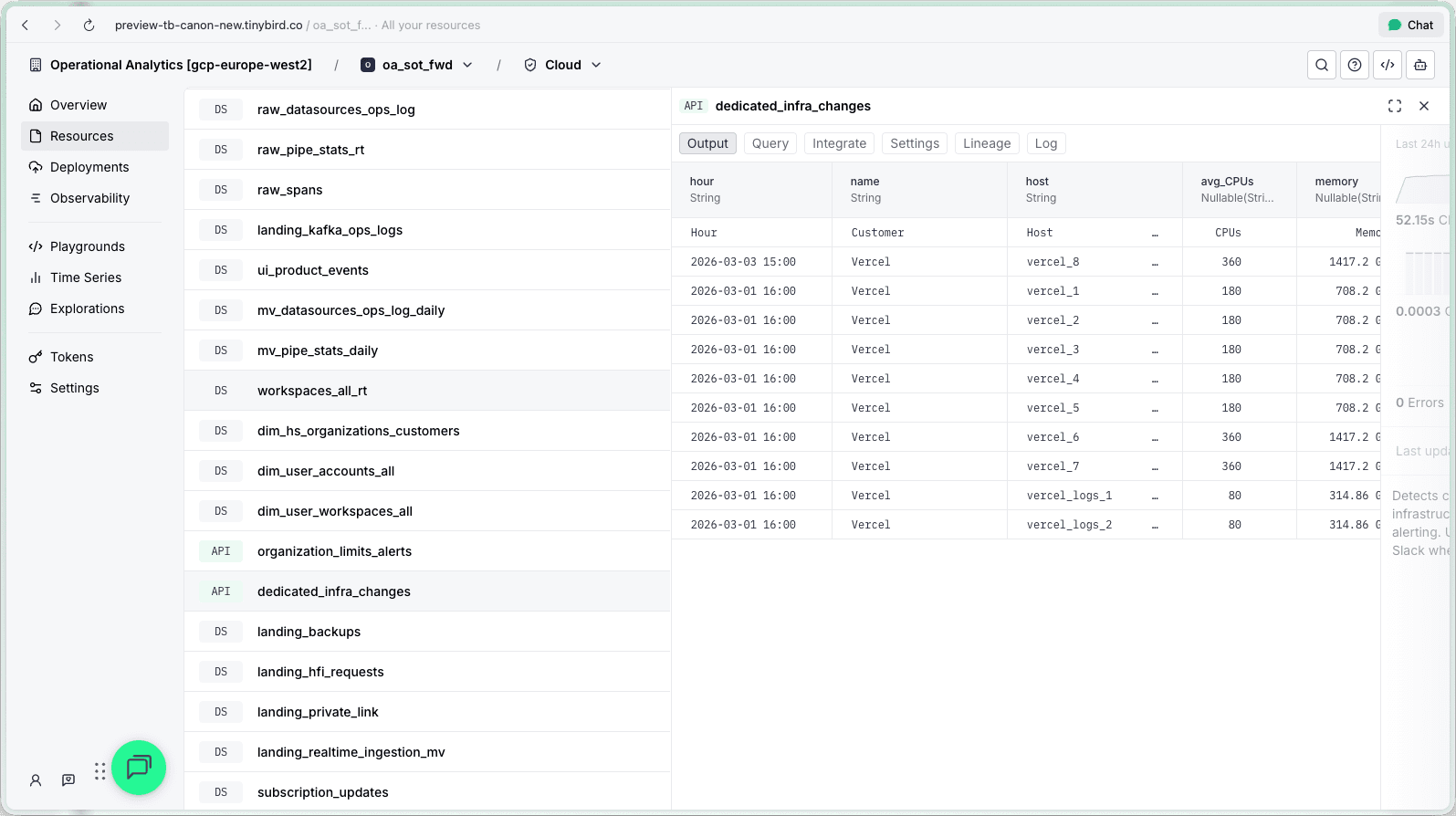
This works for every resource type: datasources, endpoints, connectors, materialized views, copy pipes, sinks, service datasources, system tables, time series charts, deployment diffs, deployment details, and job details. Each panel shows contextual information. Endpoints show their API URL and query parameters. Datasources show schema and ingestion status. Deployments show the diffs.
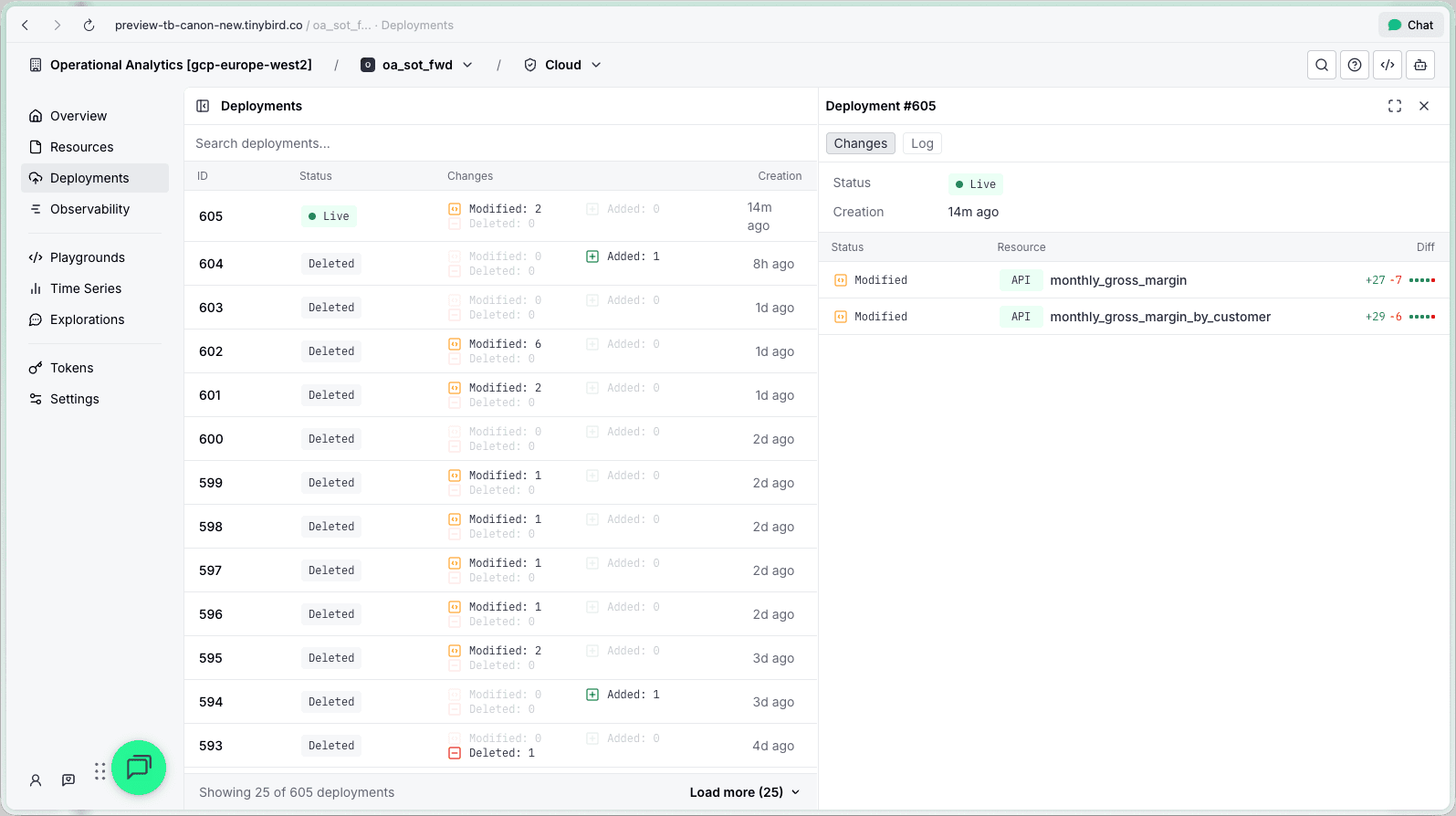
From there, you can expand to full page for focused work.
The small things
A few details that add up:
Net space gain. The header grew from 10px to 48px, but the sidebar shrank by 106px. You end up with more usable content area, not less. Graphs in Observability now take the full screen width instead of being capped at a fixed max.
Resource counts. The type filter dropdown shows Endpoints (12), Data Sources (8). Instant sense of project size.
Metric tooltips. Hover over any metric pill (requests, latency, errors) in the resource list for a time series chart of that metric. Click through to explore it further.
It is live
As coding agents write more of the code, your role shifts toward understanding, observing, and operating. We built this UI for that: more of your project visible, fewer clicks between you and the answer.


